
How to Configure Dynamic Watermarks in the Boomstream Player
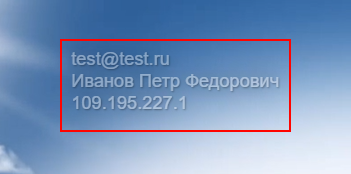
To prevent unauthorized sharing of your content, you can configure the Boomstream player to display dynamic watermarks (the viewer's email, IP address, and name) during playback.
To enable this feature, three prerequisites must be met:
- A video or live stream is uploaded to your dashboard.
- Access to the content is restricted (via payment, password, or registration form).
- Download Protection is enabled.
Note: Password-based access is the most common method for this setup. Passwords can be generated in the dashboard or via API, and then sent to the viewer or managed on your end.
How Automatic Authorization Works
If your platform has a user account system, you can set up automatic authorization in the player. When the learner logs into your platform and clicks "Play", the player automatically fetches and displays their specific data as an overlay watermark:
- User email
- IP address of the playback device
- User name
Below is the step-by-step guide to setting up this integration via the Boomstream API.
Step-by-Step Setup Guide
1. Upload Content
Upload a video to the platform or create a live stream.
2. Create Password-Based Access
Create password-based access in your dashboard or via the API create method. Define parameters based on your business logic:
- Access start date
- Access end date
- Access period
Recommendation: Use the group password access type. This allows all videos added to this group to be viewed with a single password. You can create unlimited password accesses, and a single video can belong to multiple accesses simultaneously.
3. Add the Video to the Password Access
Link your content to the access rule:
- Via UI: Check the box next to the video title, click "Restrict access", and select the target access entry.
- Via API: Use the
addmediamethod.
4. Configure the Learner's Personal Account
Choose one of the following API methods to register the viewer and generate their unique identifier.
Option 4.1: Let Boomstream Generate the Hash
Call the addbuyer method. This adds the viewer's email to the allowed consumers list and returns an individual access password:
<Hash>123456789</Hash>
Save this Hash in your database to pass to the player later.
Option 4.2: Use Your Own Custom Hash
Call the API with your own unique identifier:
https://boomstream.com/api/ppv/addbuyer?apikey=[API_KEY]&code=[CODE_SUBSCRIPTION]&media=[CODE_MEDIA]&email=[EMAIL]¬ification=0&hash=[YOUR_HASH_TO_IDENTIFY_USER]
Important: The
hash=[YOUR_HASH_TO_IDENTIFY_USER]value must contain a unique prefix (e.g., your project name, ID, or a specific number sequence). Failing to do so may cause hash collisions, and the user will not be added correctly.
5. Add the Parameter to the Player Link
For every player embedded on your lesson pages, append the recovery parameter to the URL:
?id_recovery=[YOUR_HASH_TO_IDENTIFY_USER]
Example of the final player link:
https://play.boomstream.com/0Ut5NKvv?id_recovery=[YOUR_HASH_TO_IDENTIFY_USER]
6. Pass the Parameter to the Player
Ensure your frontend dynamically passes the ?id_recovery=[YOUR_HASH_TO_IDENTIFY_USER] parameter to the iframe or player script using your preferred method.
7. Configure Domain Parking
To prevent the browser from blocking cross-domain (CORS) requests, you must park your domain.
In the Boomstream dashboard, go to Project settings → Branding and set up domain parking.
Your player address will then look like this:
video.yourdomain.com
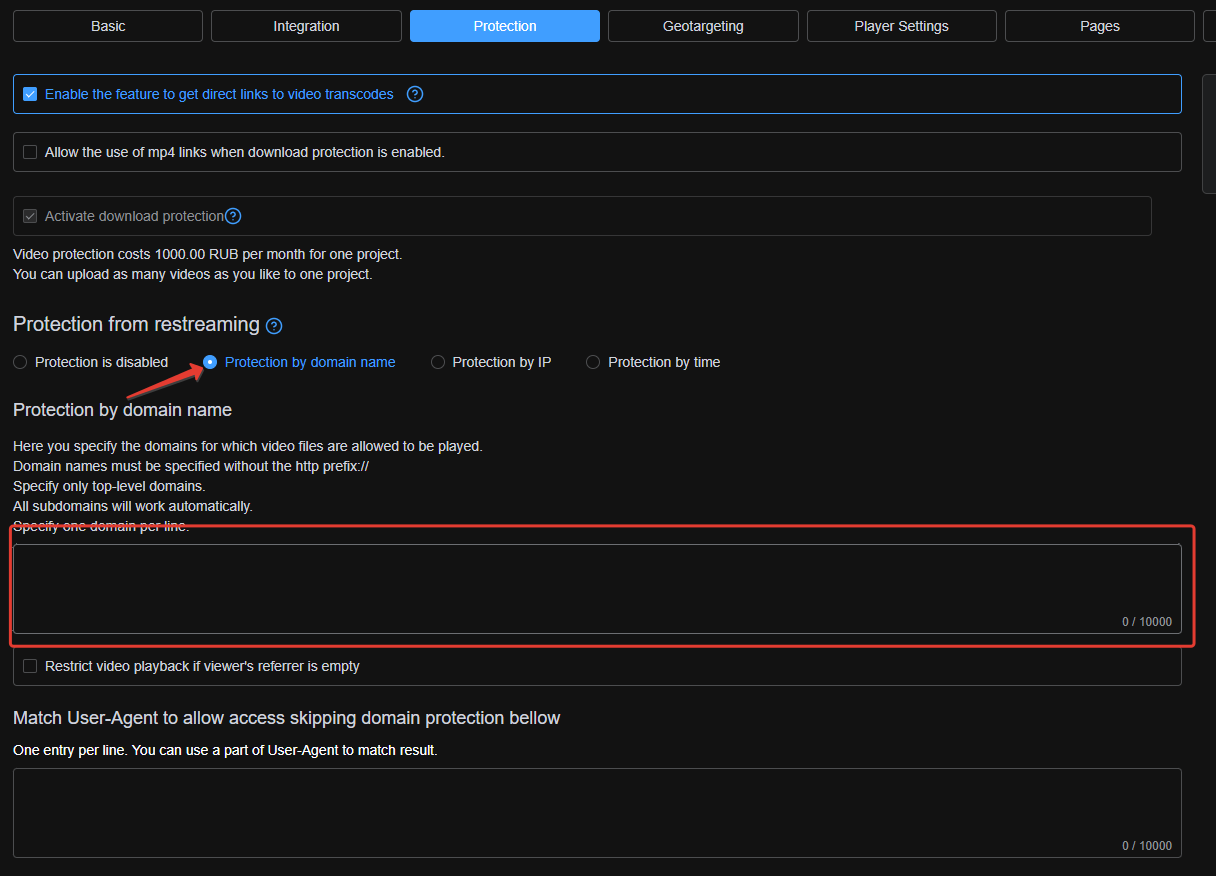
8. Enable Domain Protection
For maximum security, restrict where the player can be embedded.
In Project settings → Protection, specify your allowed playback domain and enable the option to block playback when the referrer is empty.
Quick Setup Checklist
| Step | Action |
|---|---|
| 1 | Upload a video or create a live stream |
| 2 | Create a group password access rule |
| 3 | Add the video to the password access (UI or API) |
| 4 | Register the viewer via the API (addbuyer method) |
| 5 | Append the ?id_recovery=[HASH] parameter to the player URL |
| 6 | Dynamically pass this parameter from your platform to the player |
| 7 | Configure domain parking (Branding settings) |
| 8 | Enable domain protection and referrer blocking (Protection settings) |
✅ Done!
Your content is now secured. During video playback, the Boomstream player will automatically display personalized watermarks with the viewer's data (email, IP address, name), effectively deterring unauthorized recording and sharing.