
How to Integrate Zoom with Boomstream for Automatic Recording Uploads
Seamlessly connect Zoom and Boomstream to automatically upload new Zoom cloud recordings directly to your Boomstream account. This eliminates the need to manually download videos to your PC and re-upload them.
As soon as Boomstream receives notification of a new recording, it imports the file and begins processing screenshots and transcodes. You instantly gain access to all Boomstream features: a customizable player, flexible embedding options, advanced video protection, and more.
Prerequisites for Integration
Before starting, ensure you have:
- An active account on the Boomstream platform.
- Recording permissions enabled on your Zoom account.
Step-by-Step Integration Guide
1. Install the Boomstream App from Zoom Marketplace
- Find the Boomstream App on the Zoom Marketplace.
- Click the Add button.
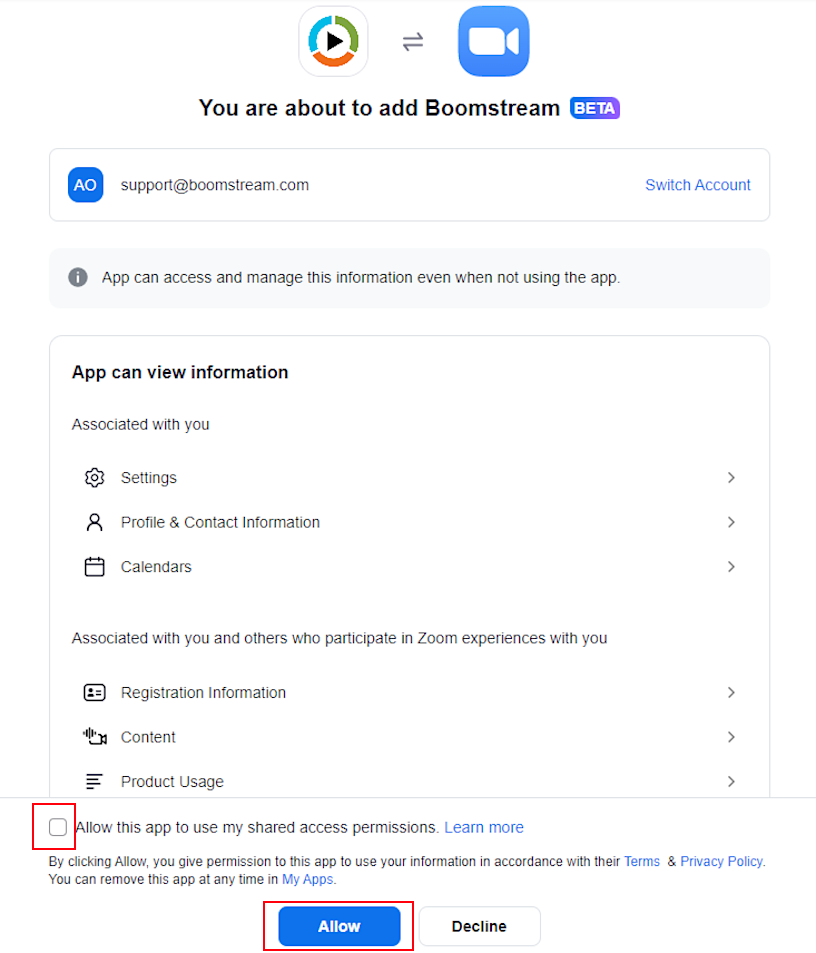
- On the authorization page, review the terms, then click Allow.
2. Retrieve and Enter Your Boomstream API Key
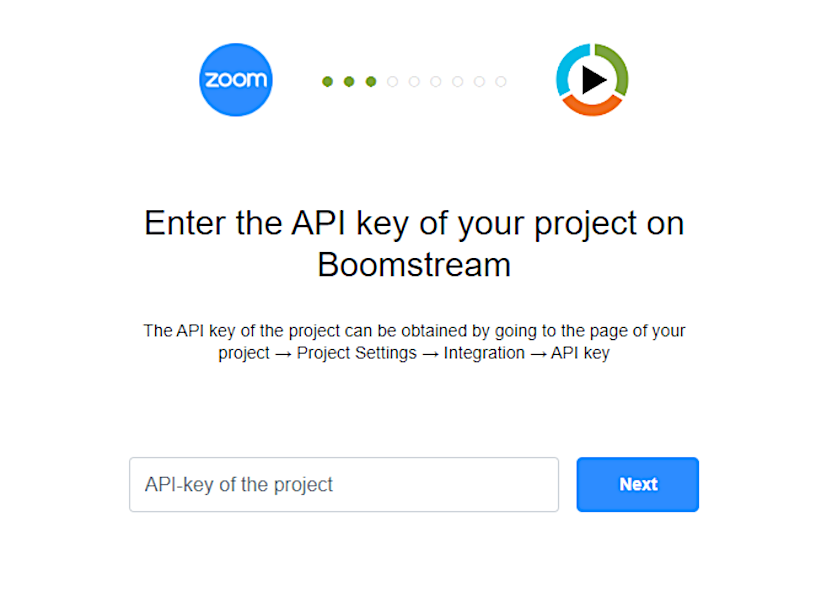
You will be prompted to enter your Boomstream API key to authorize the connection. To find it:
- Log in to your Boomstream account.
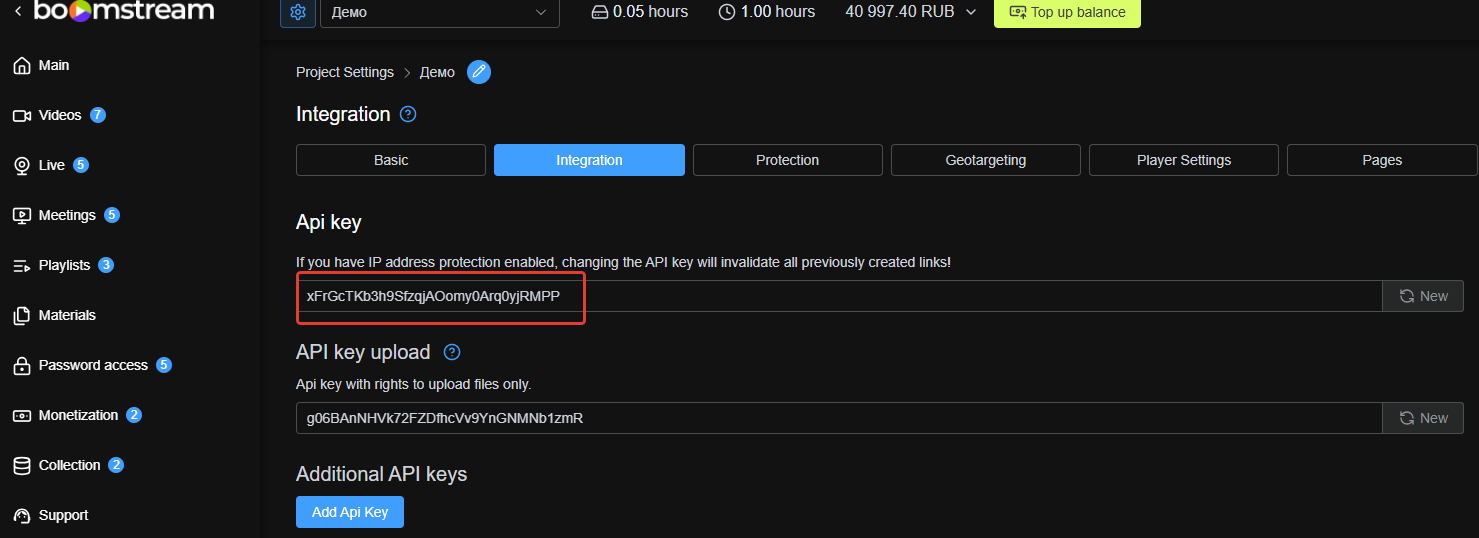
- Click Project Settings (the gear icon next to your project name).
- Navigate to the Integration tab.
- Copy the API-key.
- Paste the copied API-key into the Zoom App configuration window.
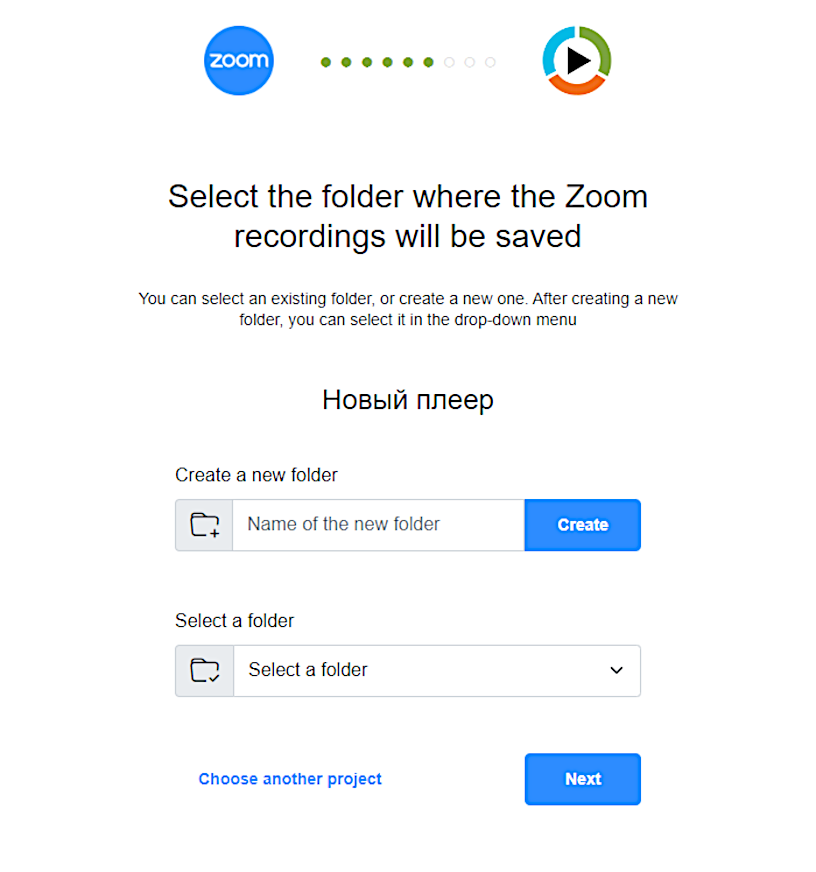
3. Select a Destination Folder
Choose an existing folder or create a new one in your Boomstream account. All new recordings from your Zoom cloud will be automatically uploaded to this specific folder.
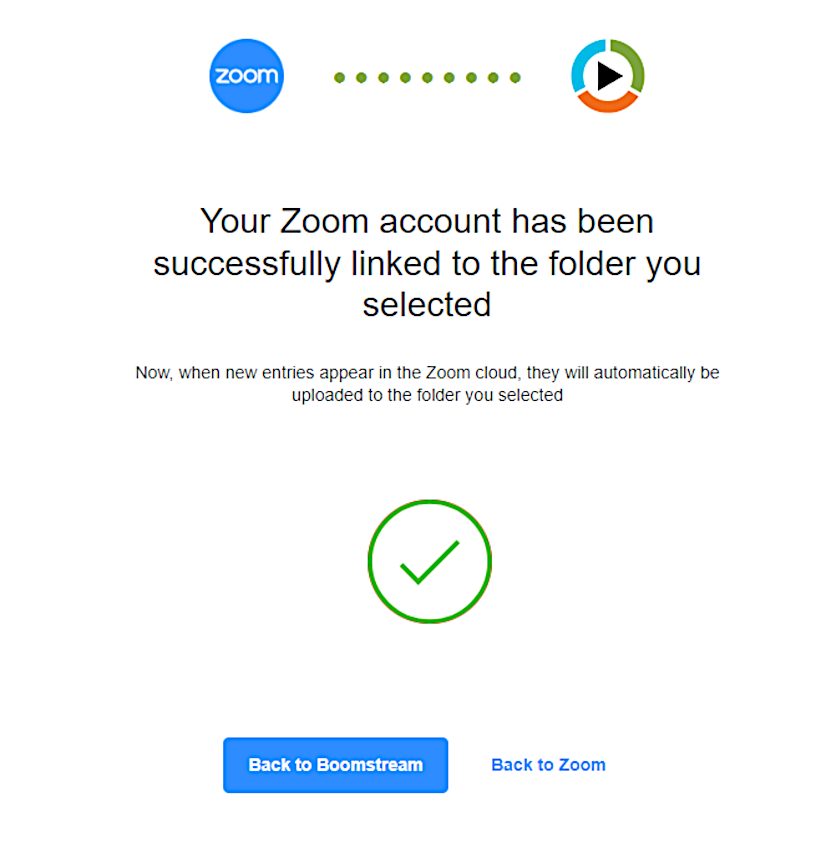
4. Complete the Integration
Review your settings. Once confirmed, the integration is active.
Important Notes for Zoom-Boomstream Integration
Deleting Recordings
If you delete a recording from the Zoom cloud, it will not be automatically deleted from your Boomstream folder. You must remove it manually:
- Log in to the Boomstream platform.
- Open the designated Zoom integration folder.
- Check the box next to the recording name.
- Click the Delete button.
Connecting Multiple Zoom Accounts
The integration supports connecting multiple Zoom accounts to a single Boomstream account. However, it is strictly required that each Zoom account is linked to a different, unique Boomstream folder to prevent data conflicts.
How to Uninstall the Zoom App
If you need to disconnect the integration, follow these steps:
- Log in to your Zoom account.
- Navigate to the Zoom Marketplace.
- In the left-hand menu, click Added Apps.
- Select Boomstream and click Remove.
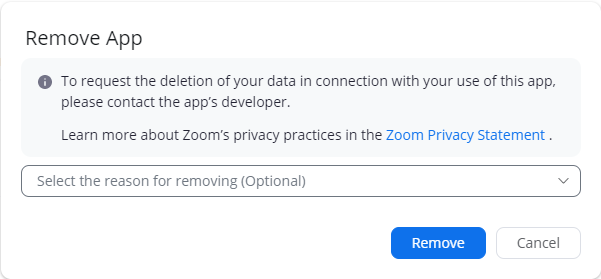
- A pop-up will ask for the reason for uninstallation. Select an option.
- Click Remove again to finalize the deletion.
Request Data Deletion
To request the deletion of your data associated with the use of the Boomstream App, please contact HWD Media directly: https://boomstream.com/en/contact.html
Quick Reference Checklist
| Step | Action |
|---|---|
| 1 | Ensure you have active Boomstream and Zoom accounts (with recording permissions) |
| 2 | Add the Boomstream App from the Zoom Marketplace |
| 3 | Retrieve and enter your Boomstream API-key |
| 4 | Select or create a dedicated destination folder in Boomstream |
| 5 | Confirm integration — recordings will now upload automatically |
✅ Done!
Your Zoom recordings will now automatically appear in your Boomstream account, streamlining your workflow and eliminating manual downloads and uploads.