
How to Connect Yandex Metrica to Boomstream: Step-by-Step Guide
1. Enable White Label in Boomstream
To connect a Yandex Metrica counter, you must first enable the White Label option in your Boomstream account.
Note: If you are on a bundle plan, the White Label feature is already included in your plan price.
2. Set Up the Counter in the Boomstream Dashboard
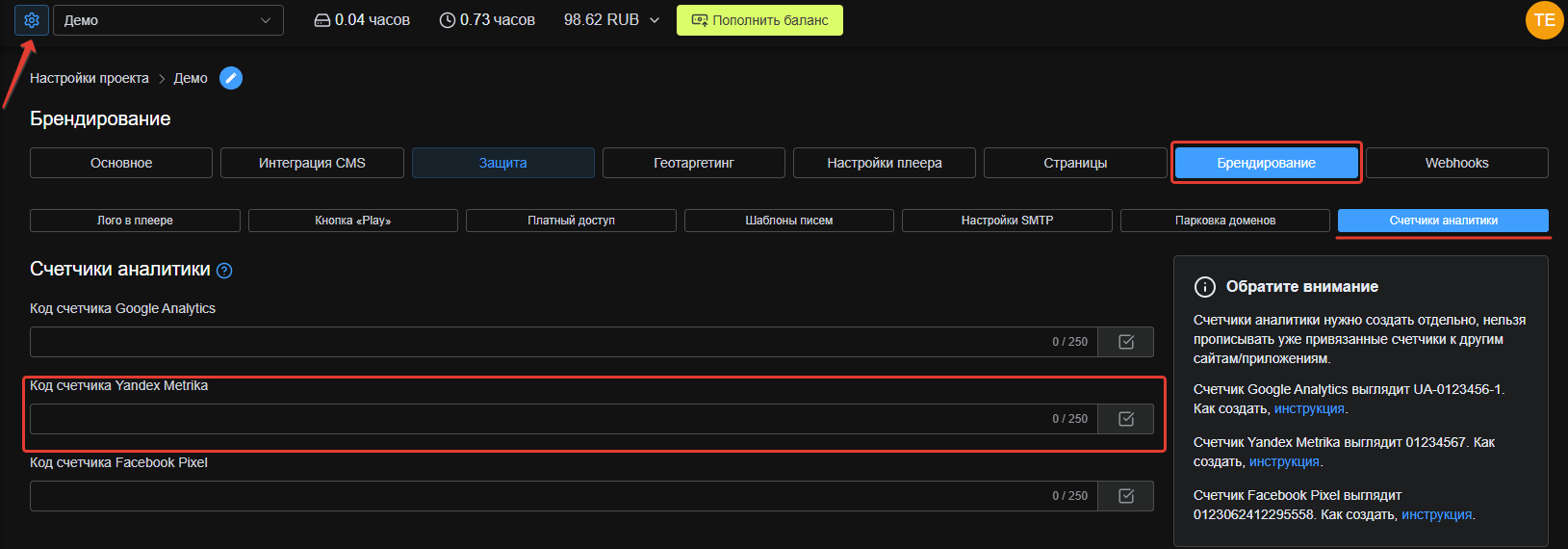
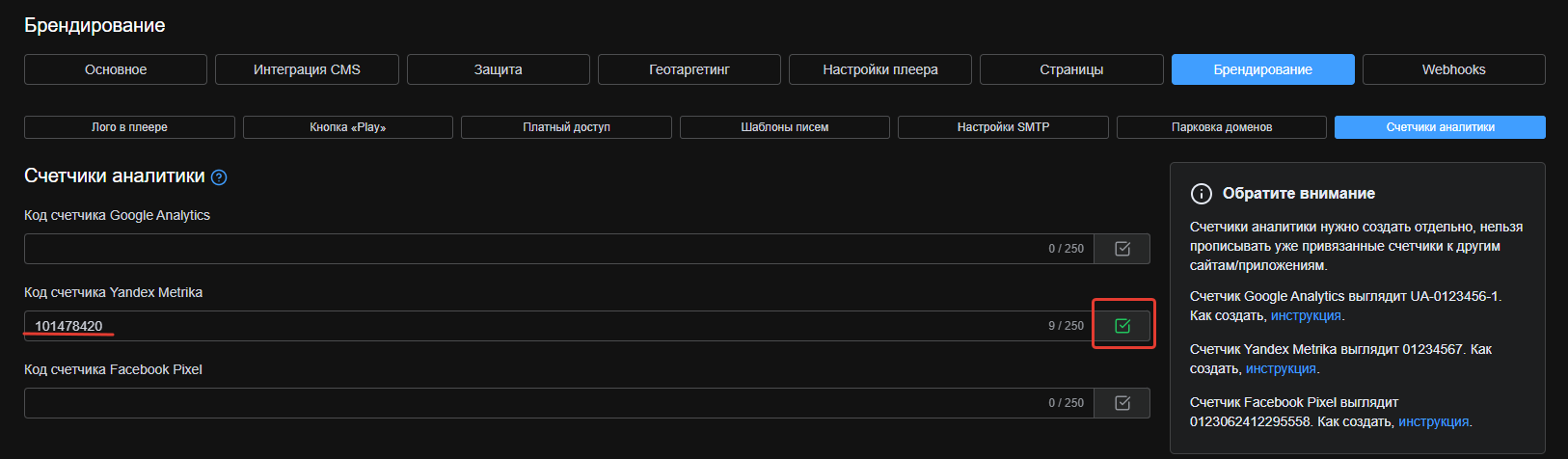
- Navigate to Project settings (the gear icon next to your project name).
- Go to White Label → Analytics counters.
- Locate the field for Yandex Metrica.
- Enter the Yandex Metrica counter ID (created in Step 3) into this field.
3. Create a Counter in Yandex Metrica
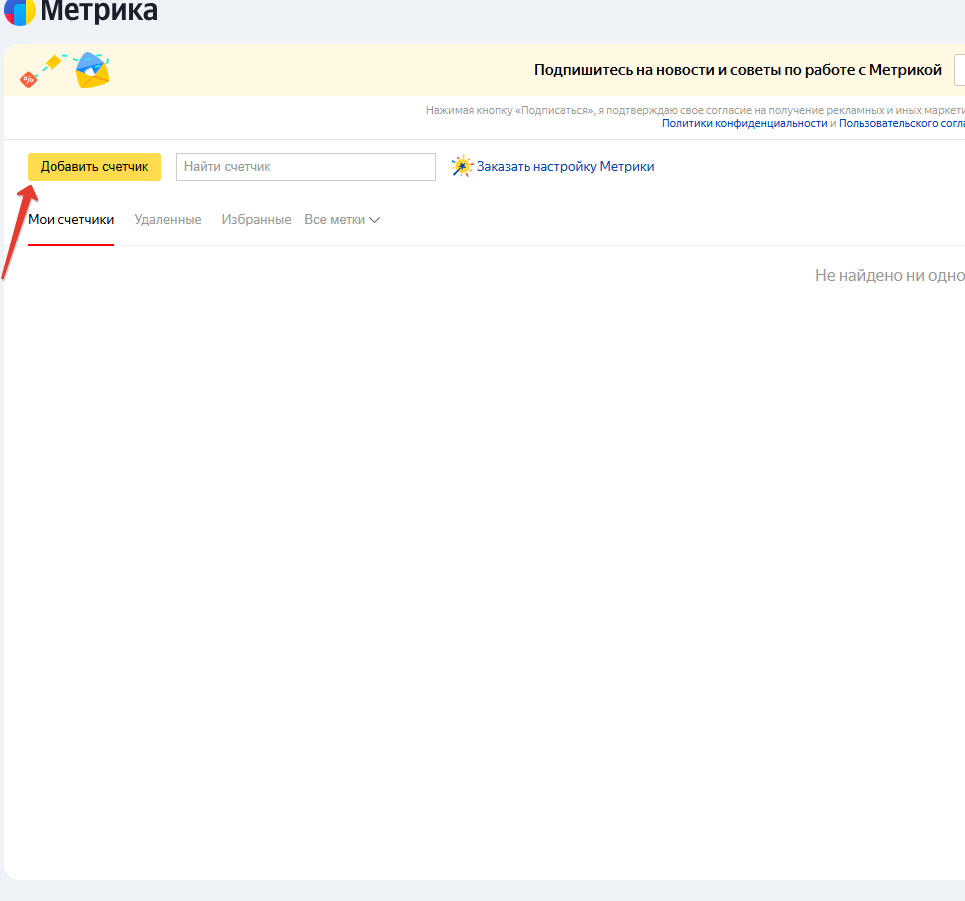
- Go to the Yandex Metrica website and sign in to your account.
- Click the "Add counter" button.
4. Configure Counter Details
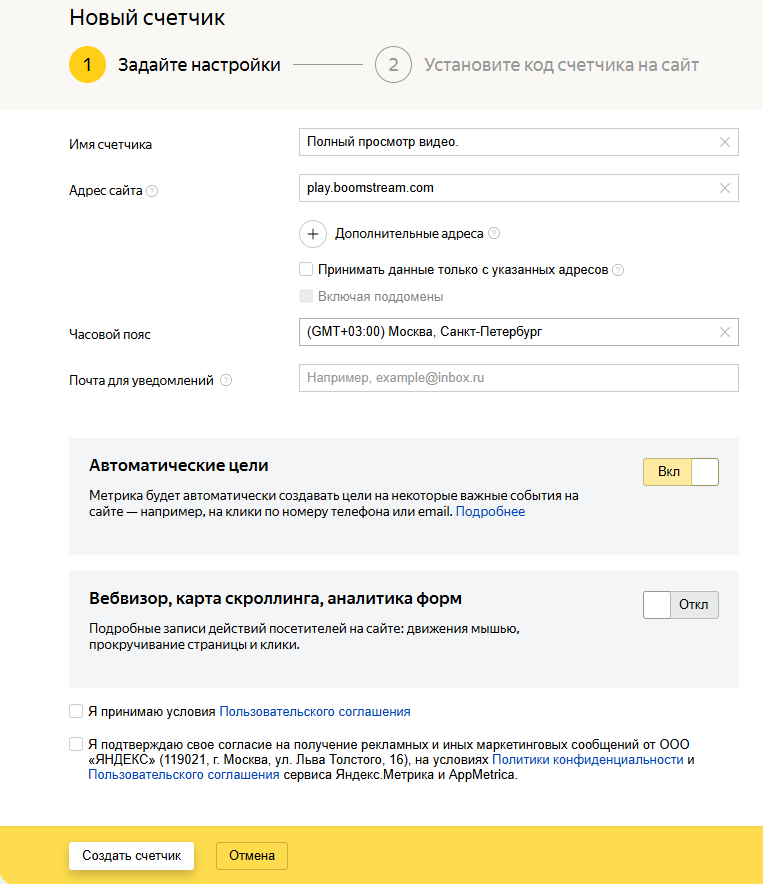
Fill in the counter creation form with the following recommended settings for Boomstream:
| Field | Recommendation |
|---|---|
| Counter name | Use a descriptive name to easily identify the video player data. |
| Site address | Enter the player address (play.boomstream.com) or your custom parked video subdomain. |
| Additional sites | Add if applicable. |
| Notification email | Optional. |
| Time zone | Select your local time zone. |
| Accept data from selected sites only | Enable for better data accuracy (recommended). |
| Automatic goals | Enable at your discretion. |
Click "Create counter" when finished.
5. Retrieve Your Yandex Metrica Counter Number
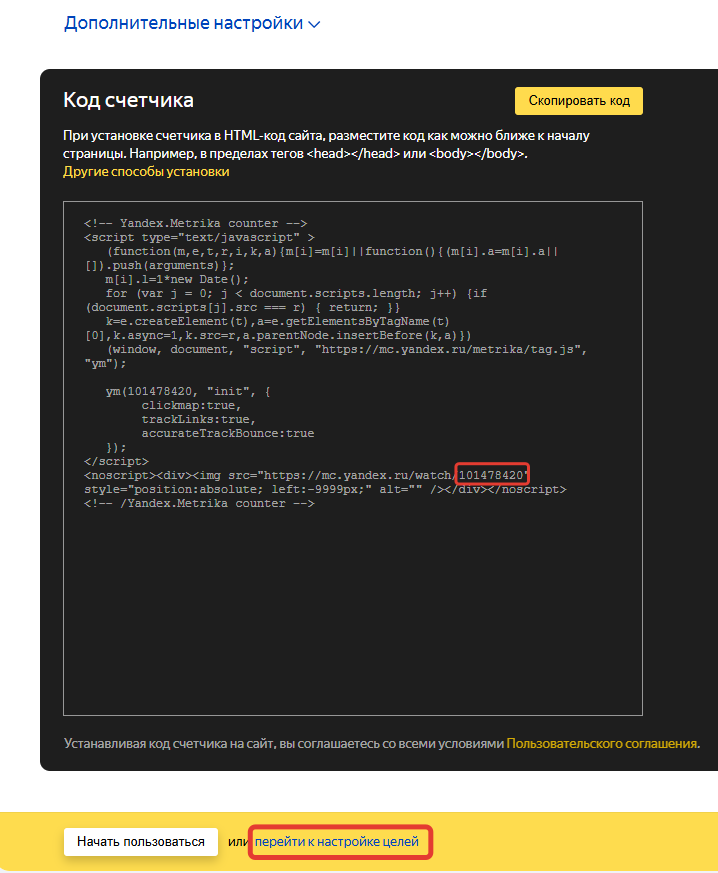
After creation, a page with the HTML embedding code will appear.
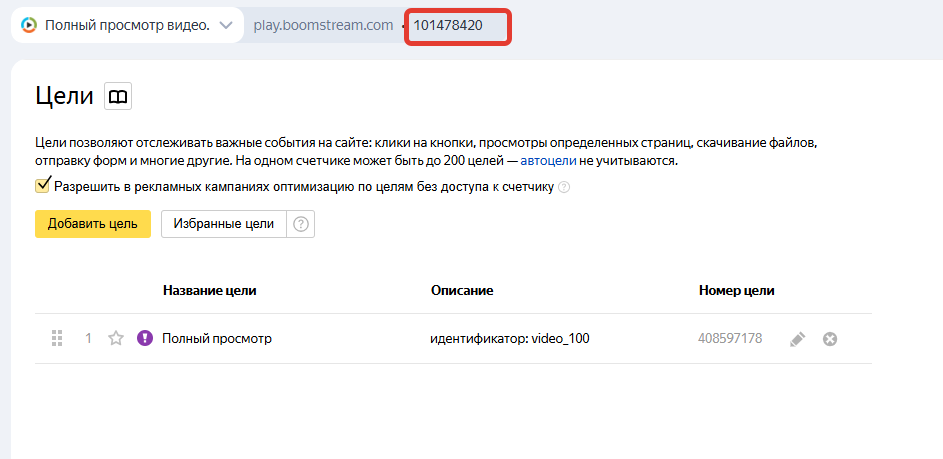
- You only need the Counter Number (ID) to enter into your Boomstream project settings.
Important: Do not embed the full HTML code anywhere; Boomstream handles the script injection automatically.
Next, click "Go to goal setup" to configure video tracking events.
6. Set Up Video Tracking Goals
To track specific user actions in the video player, create custom goals:
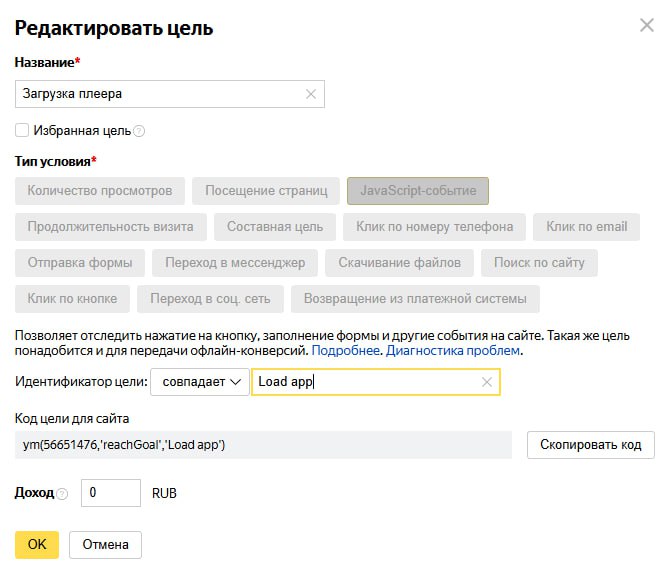
- Click "Add goal".
- Enter a clear, descriptive Goal name.
- Select "JavaScript event" as the condition type.
- In the "Goal identifier" field, enter one of the Boomstream event identifiers from the table below:
| User Action (Event) | JavaScript Event Identifier |
|---|---|
| Player load | Load app |
| Playback start | Press play |
| Playback stop | video_stop |
| Pause | video_pause |
| Fullscreen | Press fullScreen |
| 25% of the video watched | video_25 |
| 50% of the video watched | video_50 |
| 75% of the video watched | video_75 |
| 100% of the video watched | video_100 |
| Speed 0.5x | Press speed 0.5 |
| Speed 1x | Press speed 1 |
| Speed 1.25x | Press speed 1.25 |
| Speed 1.5x | Press speed 1.5 |
| Speed 2x | Press speed 2 |
| Payment widget opened | Open order page |
| Plan selected (proceeding to gateway) | Open payment form |
| Redirect to payment gateway | Go to payment gateway |
| Payment completed (user returned) | Payment is done |
| Viewer registration successful | Registration success |
Click "Add goal" to save. Repeat for any additional events you want to track.
7. Finalize the Integration
Copy your Counter Number and paste it into the Yandex Metrica field in your Boomstream Project settings (as outlined in Step 2). Save your changes.
✅ Done!
Your Yandex Metrica counter is now successfully connected to Boomstream. You can start tracking detailed user interactions and video analytics directly in your Yandex Metrica dashboard.