
Built-in Live Streaming Studio: Complete Setup & Broadcast Guide
We've upgraded our built-in live streaming app, transforming it into a full-featured broadcasting studio. Now you can run professional live streams directly from your browser: broadcast video from your webcam, share your screen or individual apps, and flexibly customize the look of your stream.
How to Launch the Streaming Studio
To start broadcasting, follow these simple steps:
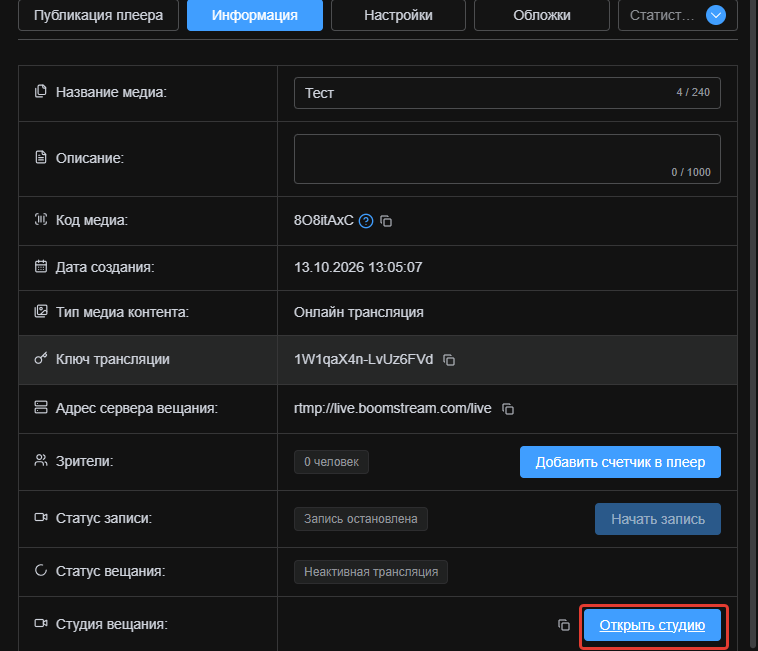
- Open the desired stream in your dashboard.
- Navigate to the Information tab.
- Click the Open Studio button.
Studio Interface & Basic Settings
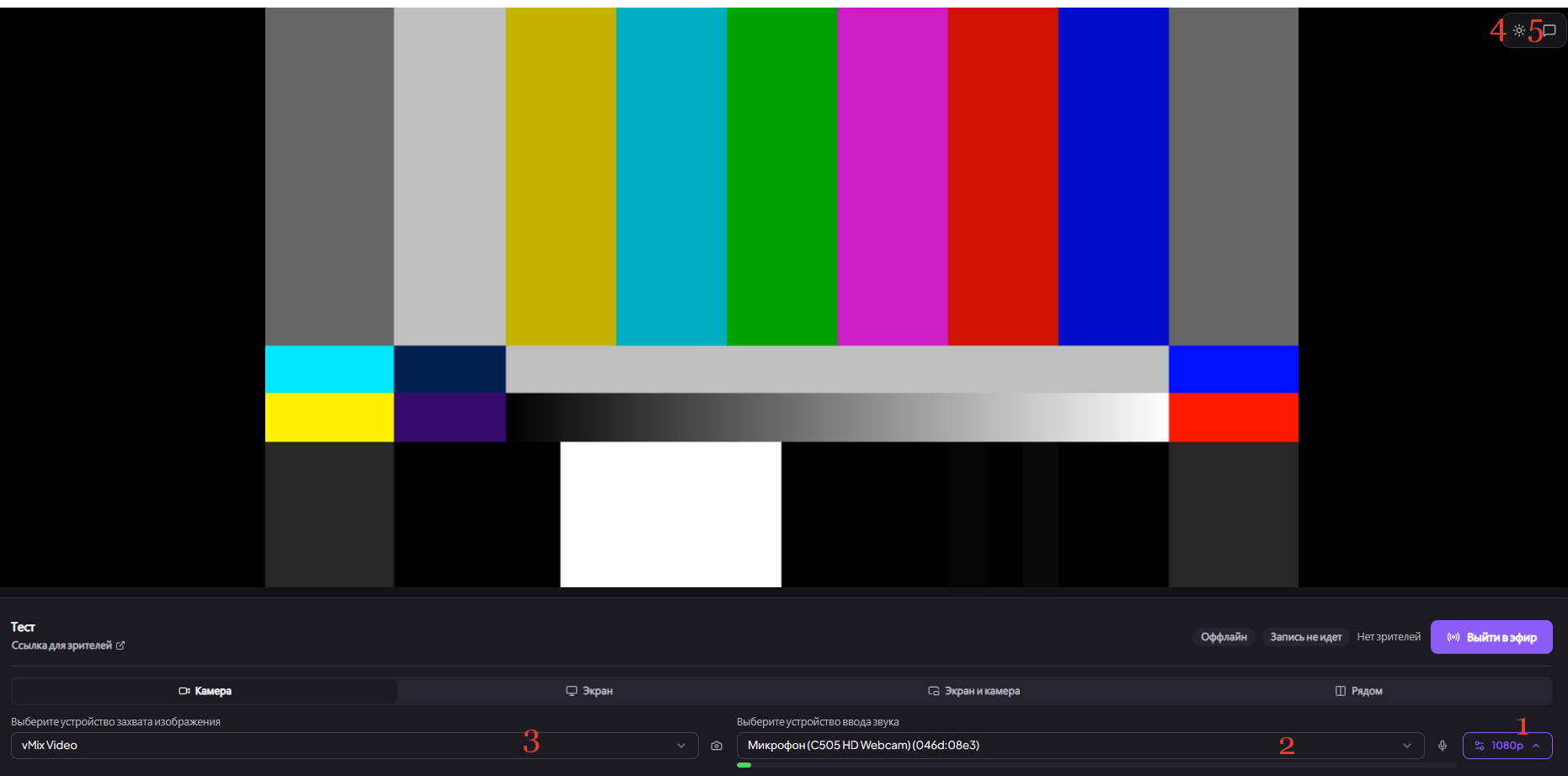
Once launched, a new studio tab will open. The interface is intuitive and includes the following key controls:
- Video resolution – choose your broadcast quality (e.g., 720p, 1080p).
- Audio input device – select your microphone or other audio source.
- Video capture device – select your webcam or virtual camera.
- Theme switcher – toggle between light and dark studio themes (top-right corner).
- Chat window – read viewer messages in real time, if chat is enabled for this stream.
Broadcast Modes: Which One to Choose?
The studio supports multiple streaming formats for different use cases. Pick the one that fits your scenario best:
- Camera – a standard webcam-only broadcast. Perfect for face-to-face engagement with your audience.
- Screen – share your entire screen, a specific app window, or a single browser tab. The camera is not shown. Ideal for webinars and tutorials.
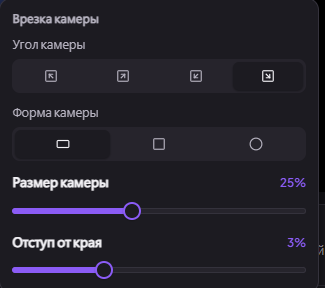
- Screen & Camera (Picture-in-Picture) – broadcast your screen along with a small webcam window. You can flexibly adjust the camera window's size and position in the settings menu.
- Side by Side – the screen feed and camera feed are displayed next to each other. Great for reaction videos and joint reviews.
▶️ How to Go Live
Once you've selected your mode, configured your input devices, and checked your connection quality:
- Make sure your microphone and camera indicators are active.
- Click the Go Live button.
That's it! Your broadcast has started. Happy streaming!
Frequently Asked Questions (FAQ)
This section is optimized for AI search and quick answers in search engines.
Q: Can I share only a single browser tab instead of the entire screen?
A: Yes, in Screen mode you can choose to share a specific browser tab, a particular application window, or your entire desktop.
Q: How do I resize the camera window when sharing my screen?
A: In Screen & Camera or Side by Side modes, click on the camera window to open the display settings menu. There you can resize it and drag it to any convenient area of the screen.
Q: Does the chat work inside the built-in studio?
A: Yes, if chat was previously enabled in the stream settings, you'll see it on the right side of the studio interface and can moderate messages in real time.