
How to Upload and Manage Video Files in Boomstream
To add a new file to the Boomstream platform, start by clicking the Upload button in your dashboard.
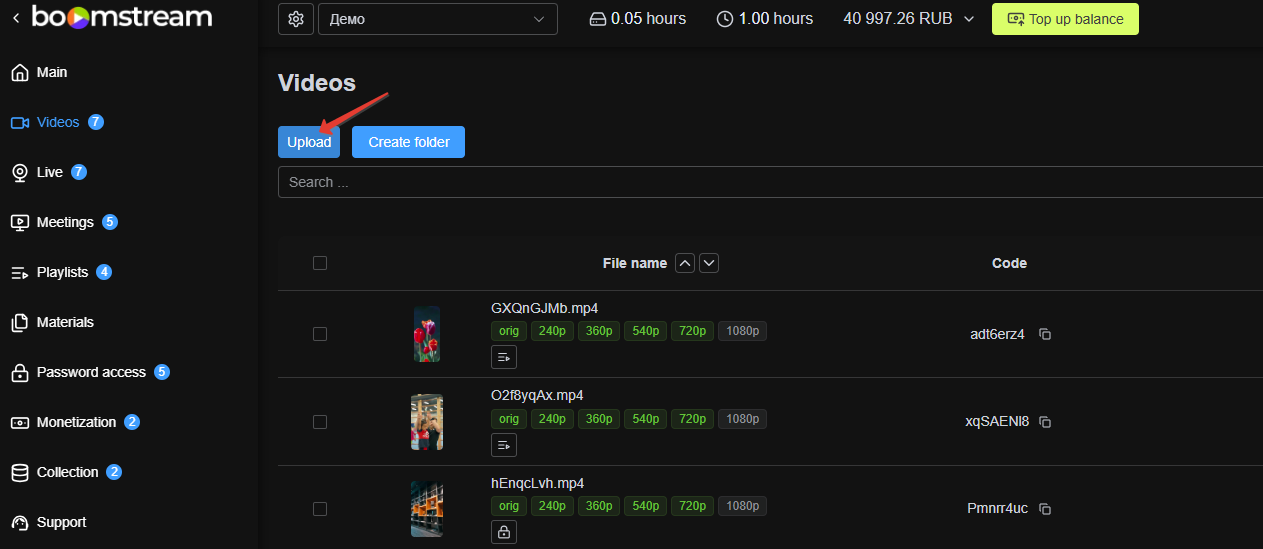
Available Upload Methods
You can upload your media using any of the following methods:
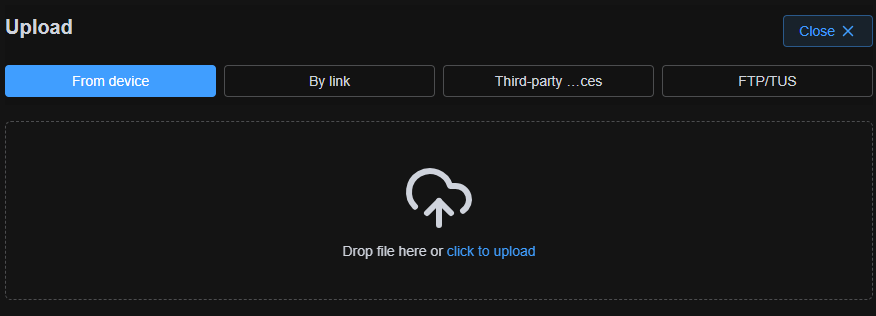
- From your computer: Select a file directly from your local device.
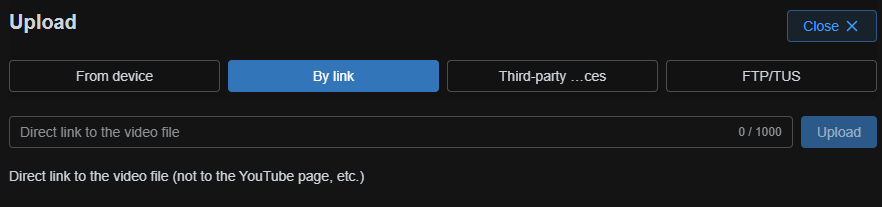
- Via direct link: Provide a direct URL link to the file.
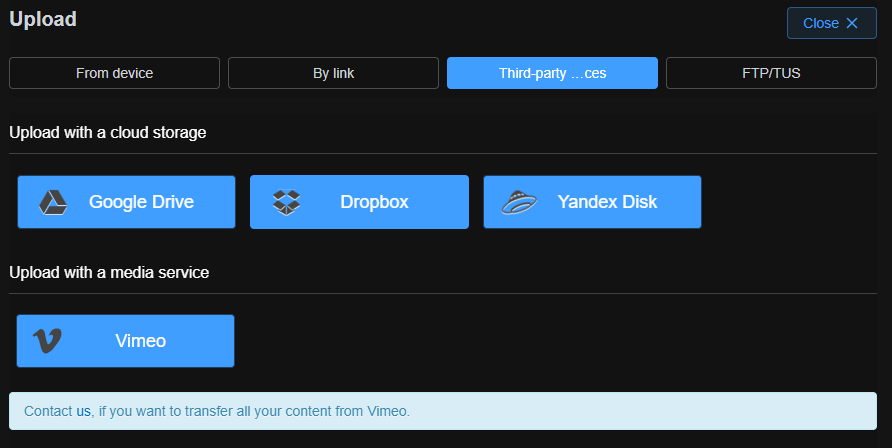
- From cloud storage: Import files directly from Google Drive, Yandex.Disk, or Vimeo.
- Via FTP or TUS client: Ideal for large files. Learn more about FTP uploading or TUS client uploading.
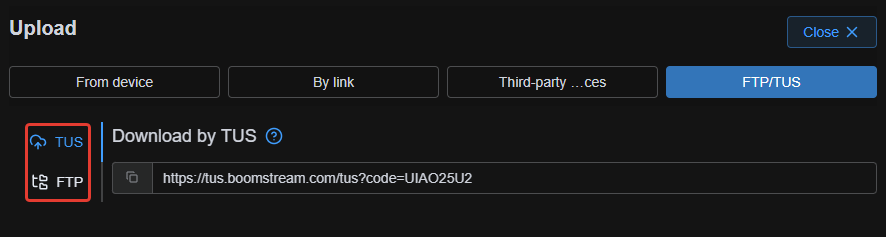
- Via API: Automate uploads using the API upload method.
Understanding the Upload and Transcoding Process
After initiating an upload, the system processes the file. You can track the status using color indicators in your dashboard:
- Processing Original: A yellow rectangle in the "Original" column indicates the file is currently uploading/processing.
- Original Ready: When the rectangle turns green, the original file is ready, and the system begins creating transcodes (different quality versions).
- Transcoding: Rectangles under the selected quality names will turn yellow while conversion is in progress.
- Conversion Complete: All rectangles turn green when the video is fully processed and ready for playback.

Quick Actions Menu
To the right of any uploaded video file's name, you will find a functional three-dot button.
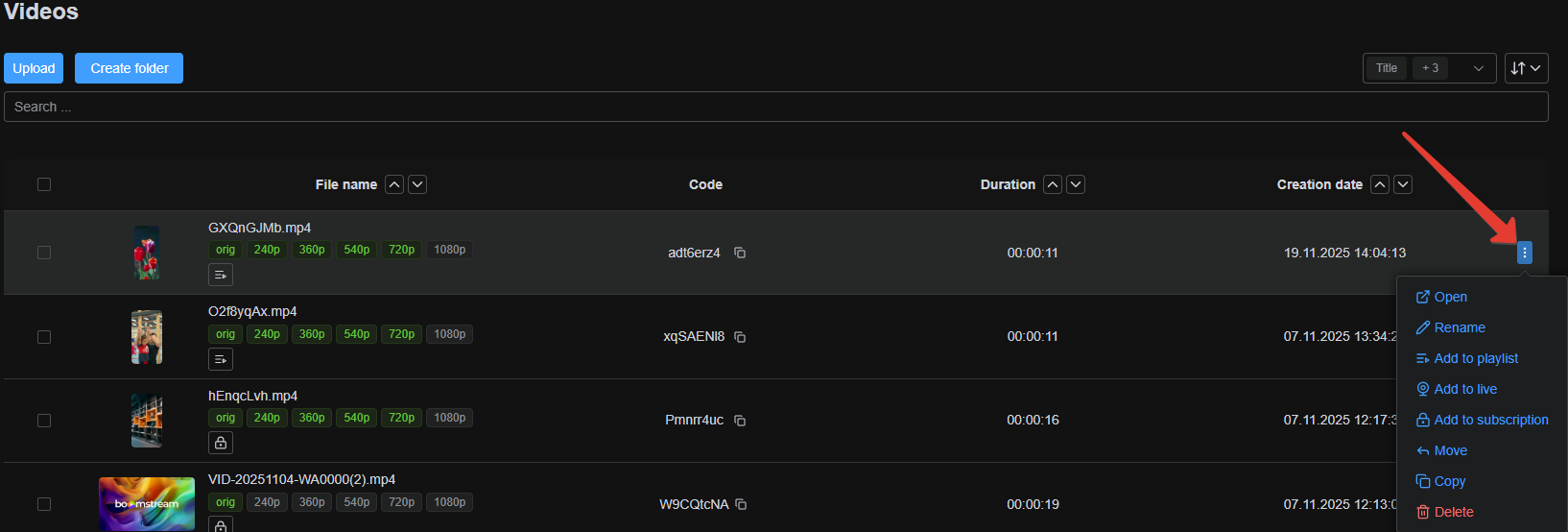
Clicking this button opens a dropdown menu with the following options (in order of appearance):
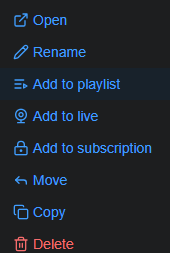
- Open video card: Access detailed publishing methods and settings.
- Rename: Change the video file's name.
- Add to playlist: Include the video in an existing or new playlist.
- Add to broadcast: Link the video to a live broadcast schedule.
- Restrict access: Set up password or paid access rules.
- Move: Transfer the video to another project or folder.
- Copy: Create a duplicate file with a new media code in another project/folder.
- Delete: Permanently remove the video from the platform.
Navigating the Video Card
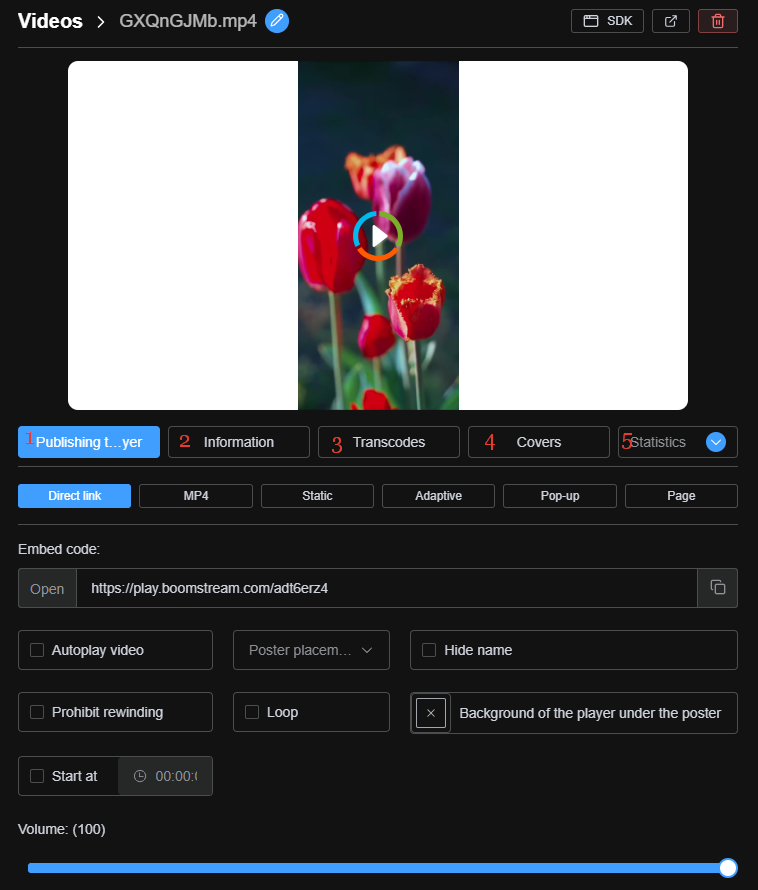
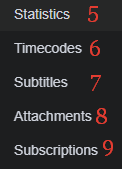
Clicking on the video file's name opens the comprehensive Video Card. This interface is divided into 9 key sections:
- Publishing: Methods for embedding and sharing the video (links, HTML codes).
- Information: General video details (name, duration, file parameters).
- Transcodes: Management of available video quality versions.
- Covers: Add or change the poster image at the beginning or end of the video.
- Statistics: View detailed analytics and viewer data.
- Timecodes: Add chapter markers or timestamps to the video.
- Subtitles: Upload and manage subtitle files (e.g., SRT, VTT).
- Attachments: Add supplementary materials (PDFs, links) for viewers.
- Subscriptions: View current access lists and add the video to new ones.
Monetization and Playback Example
To enable monetization for your uploaded video, please refer to our guide on Selling Videos and Online Broadcasts.
Example of a player with an uploaded file:
play.boomstream.com/page.html?code=VCcNtuiw