
How to Create and Manage Video Playlists in Boomstream
Use playlists to group videos with a common theme. This allows videos to play sequentially within a single player window, improving viewer engagement and content organization.
1. Creating a New Playlist
To create a new playlist, navigate to the Playlists section in your dashboard and click the Create button.

2. Understanding the Playlist Card
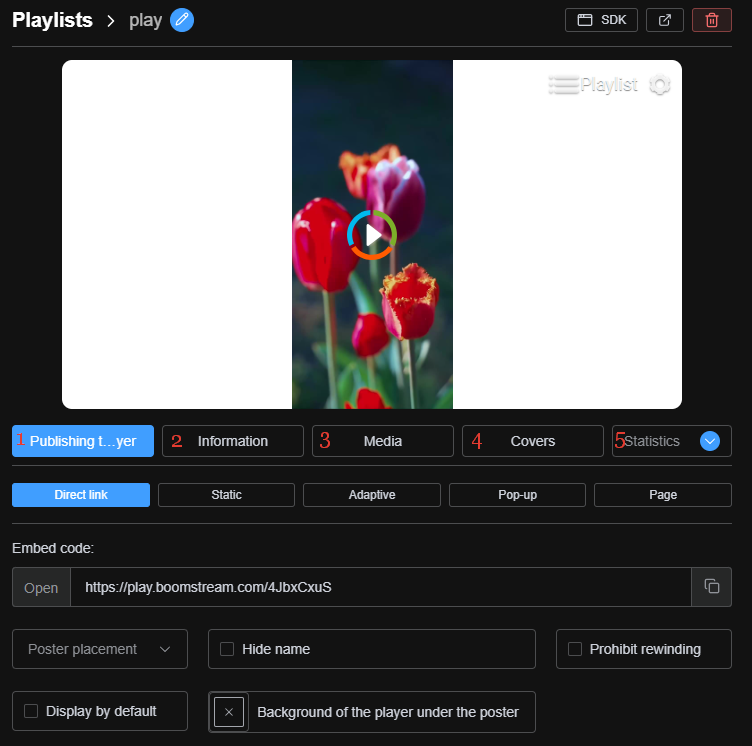
Clicking on a playlist name in the list opens the playlist card. This is your central hub for managing the playlist.
| # | Feature | Description |
|---|---|---|
| 1 | Publishing | Get the direct link or HTML embed code for publishing the playlist. |
| 2 | Information | View general metadata and information about the playlist. |
| 3 | Media | Change the display order of videos and add or remove media. |
| 4 | Covers | Add or change the playlist's thumbnail cover image. |
| 5 | Statistics | View detailed analytics and viewing statistics. |
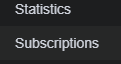
| 6 | Subscriptions | See which access lists the playlist is added to and modify permissions. |
3. Adding Videos to a Playlist
You can easily add new videos to your playlist from the Media tab:
- Open the playlist card and go to the Media tab.
- Click the Add button.
- Select the specific media files you want to add from the provided list.

4. Restricting Access to a Playlist
To protect your playlist with a password or paid access, link it to an access rule:
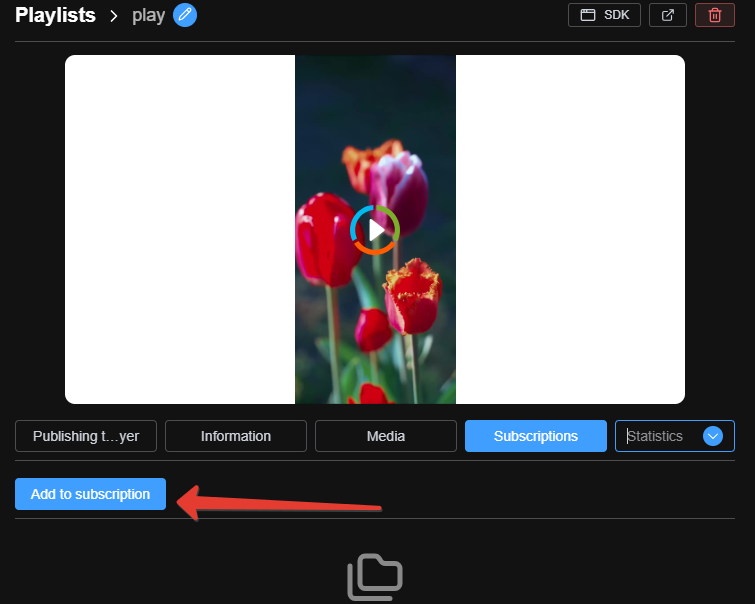
- Go to the Subscriptions tab within the playlist card.
- Review the access lists the playlist is currently part of.
- To add a new restriction, click the Add to Subscription button and select the desired access rule.
5. Using Quick Actions
In the general list of playlists, you can manage items without opening the playlist card. Click the blue three-dot button to the right of any playlist to access quick actions:
- Rename the playlist
- Restrict access (link to a subscription)
- Delete the playlist

Playlist Examples
-
Example of a Regular Playlist:
https://play.boomstream.com/page.html?code=nCmuI9Zb -
Example of a Playlist with Paid Video:
https://play.boomstream.com/page.html?code=mE5UhJs6
Quick Setup Checklist
| Feature | Action Required |
|---|---|
| Create playlist | Click Create and enter a name |
| Add media | Go to Media tab → Add → select videos |
| Restrict access | Go to Subscriptions tab → Add to Subscription |
| Quick actions | Use the blue button next to any playlist in the main list |
| Publish | Copy the link or HTML code from the Publishing tab |
✅ Done!
You can now effectively organize your videos into playlists for seamless, sequential playback.