
How to Set Up Password Access for Video or Live Stream in Boomstream
To restrict access to your content and grant viewing permissions only to authorized users, you can set up password protection. Follow this step-by-step guide to configure password access for your videos or live streams.
1. Upload or Create Content
First, ensure your content is ready. Upload a video to the Boomstream system or create a Live Broadcast.
2. Create Password Access
Navigate to the Password Access section in your dashboard.
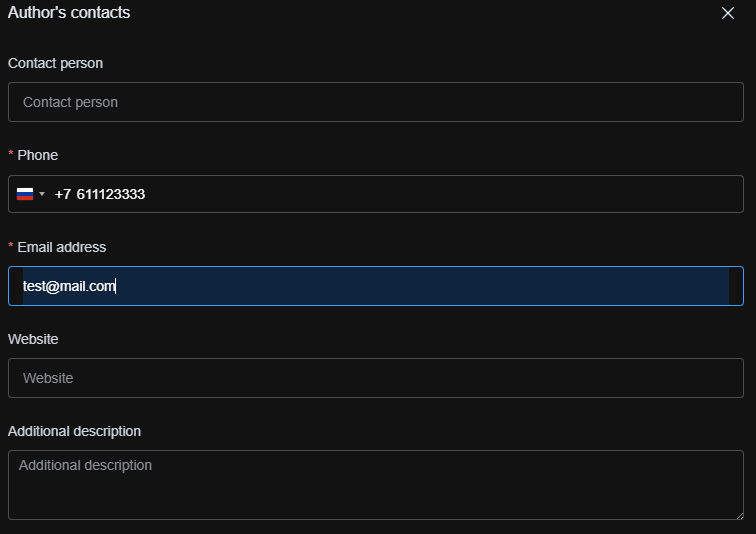
- Enter the author's information in the Author Contacts field.
- Click the Create Password Access button.
⚠️ Important: The information provided in the "Author Contacts" field is public and will be visible to the buyer/viewer.

3. Configure Initial Parameters
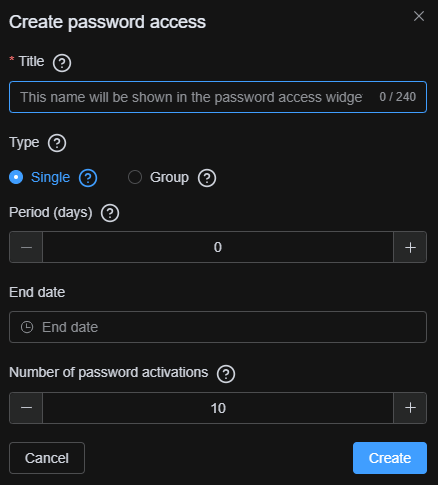
After clicking Create Password Access, a window will open with the initial parameters to configure:
| Parameter | Description |
|---|---|
| Name | Displayed on the password access page and in email messages to the viewer. |
| Type of password access | Single: User gets access only to the specific video/broadcast they are authorized for. Group: User gets access to all videos/broadcasts included in this password access rule. |
| Period | The number of days the user has access to the content. |
| Access End Date | You can set an access period and/or an exact end date. If both are set, the end date takes priority over the period. |
| Number of Password Activations | The maximum possible number of times this access can be activated. |
4. Access Card and Full Settings
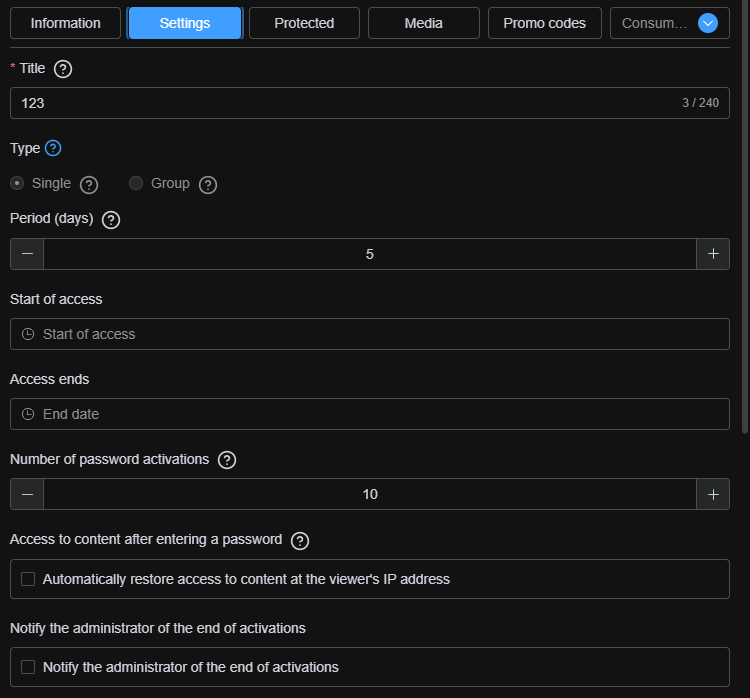
Once created, the access card will open, revealing comprehensive settings and management tabs.
Main Parameters
| Parameter | Description |
|---|---|
| Name | Displayed on the password access page and in viewer emails. |
| Type of password access | Single: Access to specific media only. Group: Access to all media in this rule. |
| Period | Number of days of access. |
| Access Start Date | The exact date and time from which access becomes active. |
| Access End Date | The exact date and time access expires (takes priority over "Period" if both are set). |
| Number of Password Activations | Maximum allowed access activations. |
| Automatically restore access based on IP address | Remembers the device's IP address and sets Cookies after initial access. For subsequent views, Cookies are the primary auth method, with IP as a fallback. If both differ from stored data, the password widget reappears. |
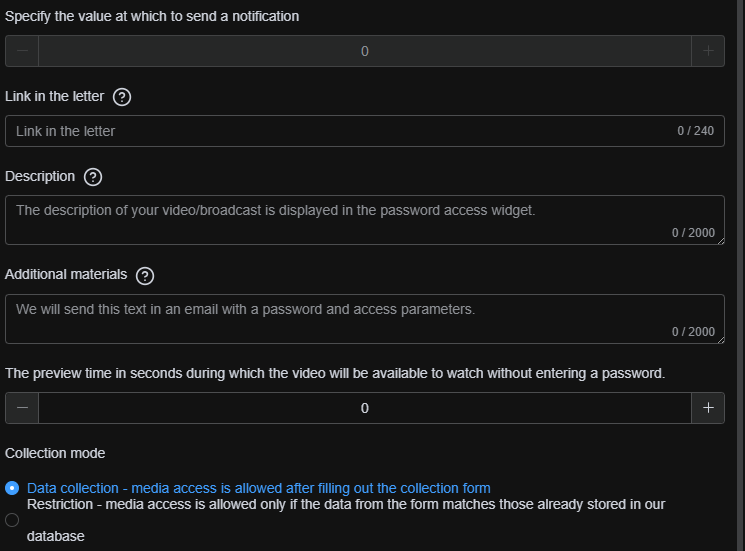
| Notify administrator when activations are running low | Triggers an email notification when a consumer's activations fall below a specified threshold. |
| Link in the email | Specifies the URL included in the password email. If left empty, it defaults to the specific media link. |
| Description | A description of your video/broadcast, displayed on the password access page. |
| Additional Materials | Links to external resources (e.g., Google Drive, PDFs). |
| Preview Time | Time in seconds a viewer can watch the video before the password prompt appears. |
5. Other Tabs in the Access Card
5.1 Information
Displays basic metadata: creation date, access type, access period, number of activations, and the unique subscription code.
5.2 Security
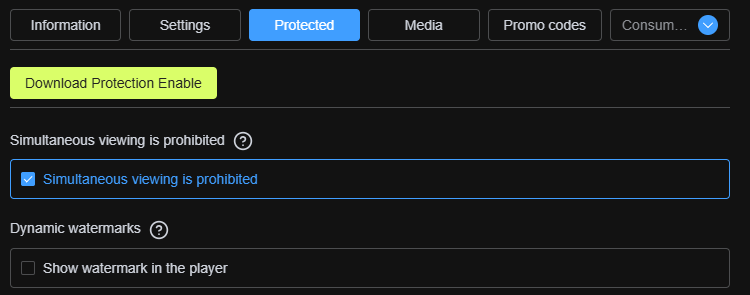
If download protection is active, you can enable Prevent Simultaneous Viewing and configure Dynamic Watermarks here.
5.3 Media
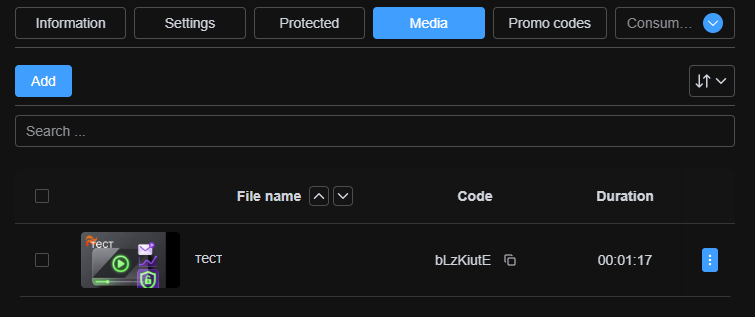
Shows which media files are currently linked to this access rule and allows you to add new ones.
5.4 Consumers
A comprehensive list of all consumers, including their passwords, session information, and activation status. Here you can manually add a consumer, adjust activation limits, or modify expiration dates.

⚠️ Important: When you manually add a user to password access, they will automatically receive an email containing the link to the content and their unique access password.
⚠️ Important for Group Access: If you add a user to a Group access rule, you can select any video/live broadcast from the list (e.g., the first one) to send in the email. The user will still be able to view all videos included in that password access rule.
5.5 CMS Integration
Allows you to set up integrations for selling content through external platforms like Tilda. Read more here.
6. Get the Player Code
Retrieve the iframe player embed code or the direct link to the password-protected video/live broadcast from the Publishing section.

7. Example of a Player with Password Access
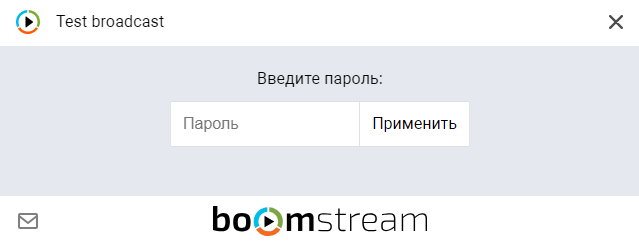
Below is an example of how the Boomstream player looks when password protection is enabled, prompting the viewer to enter their credentials.
Live Example:
https://play.boomstream.com/page.html?code=VVwbS8LD
Quick Setup Checklist
| Step | Action |
|---|---|
| 1 | Upload a video or create a live broadcast |
| 2 | Navigate to Password Access and create a new rule with author contacts |
| 3 | Configure the type, period, activations, and advanced parameters |
| 4 | Add the desired media to the access rule via the Media tab |
| 5 | Add consumers manually or via API in the Consumers tab |
| 6 | Retrieve the player code and publish it on your website |
✅ Done!
Your content is now securely protected with password access, allowing you to grant precise, individual viewing permissions to your audience.