
How to Set Up Open Broadcaster Software (OBS) for Boomstream Broadcasting
Open Broadcaster Software (OBS) is a free, powerful tool for live broadcasting with advanced management of audio and video sources.
You can download the latest version of OBS Studio here: http://obsproject.com/download
Getting Started and Initial Setup
After installing OBS, open the application and navigate to the settings by clicking the Settings button in the bottom-right "Controls" dock.
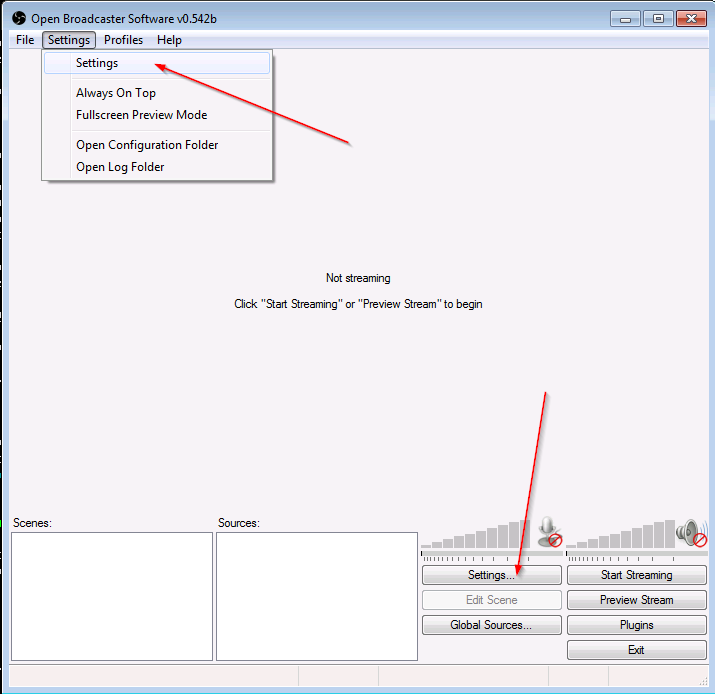
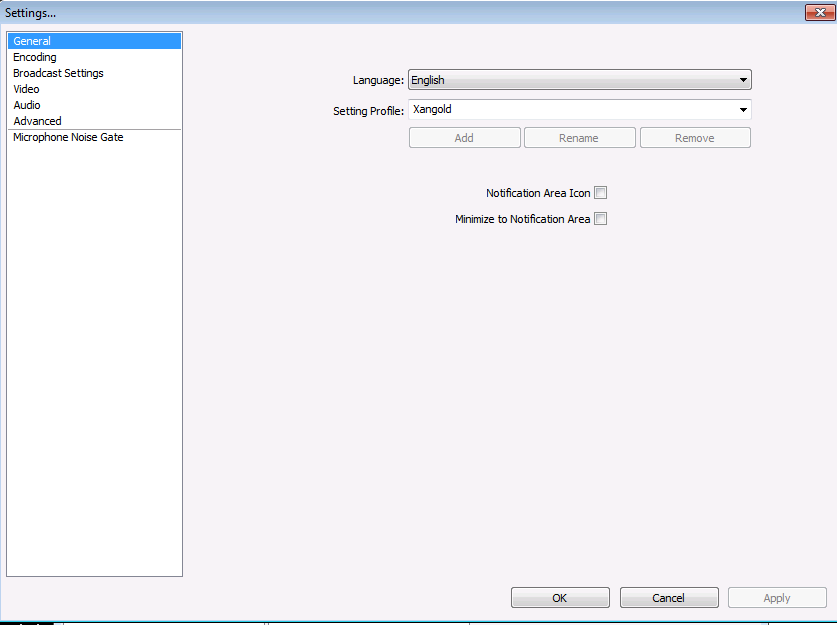
1. General Settings
Configure your basic preferences:
- Language: Select your preferred language.
- Profile: Set a descriptive profile name for this broadcasting setup.
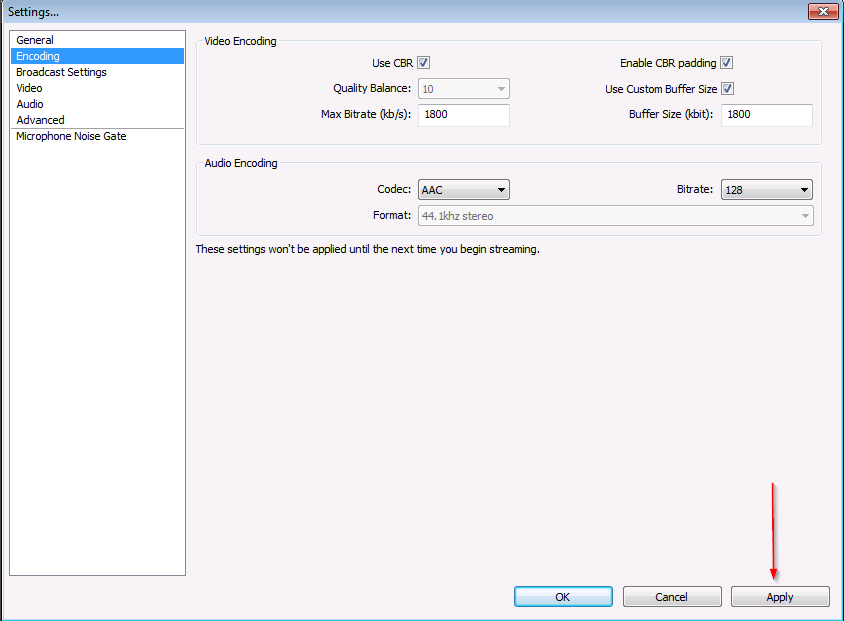
2. Output / Encoding Settings
Optimize your stream quality and stability with these recommendations:
| Setting | Recommendation |
|---|---|
| Rate Control | CBR (Checked) |
| Enable CBR padding | Checked |
| Max Bitrate | 3300 Kbps, or 80% of your upload throughput (whichever is lower) |
| Buffer Size | Equal to Max Bitrate (do not change unless experienced) |
Recommended Bitrates by Resolution
| Resolution | Recommended Bitrate (Kbps) |
|---|---|
| 1080p | 3000–3500 |
| 720p | 1800–2500 |
| 480p | 900–1200 |
| 360p | 600–800 |
| 240p | Up to 500 |
Audio Encoding
| Setting | Recommendation |
|---|---|
| Codec | AAC |
| Bitrate | 64–128 kbps |
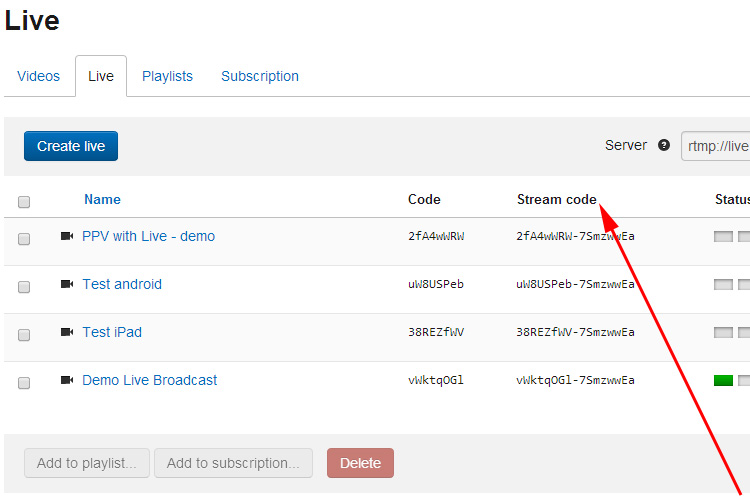
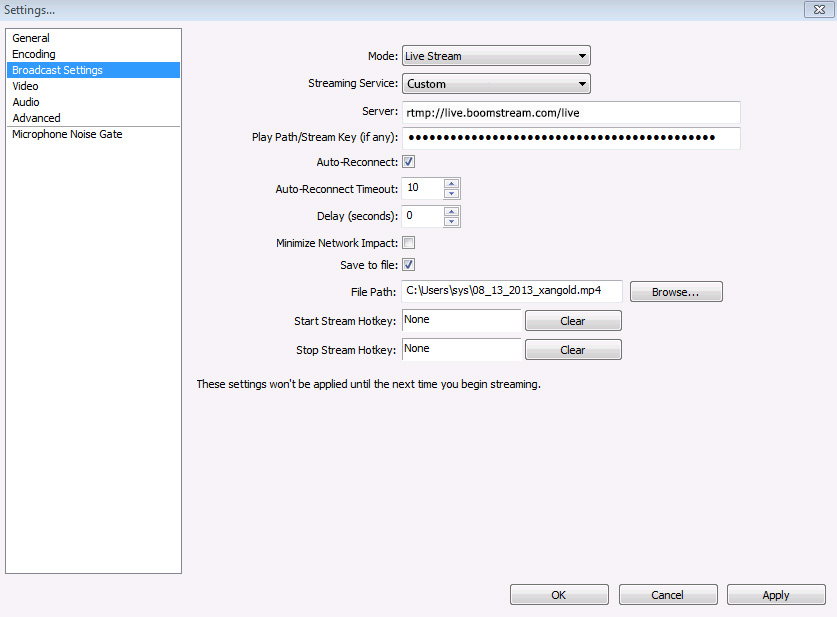
3. Stream / Broadcast Settings
Configure OBS to connect directly to the Boomstream servers:
| Setting | Value / Recommendation |
|---|---|
| Service | Custom |
| Server | rtmp://live.boomstream.com/live |
| Stream Key | Your unique stream key from the Boomstream dashboard |
| Enable Autoreconnect | Checked |
| Auto-Reconnect Timeout | 10 seconds |
| Delay | 0 (not recommended to add delay) |
| Minimize Network Impact | Unchecked |
| Save to file | Checked (highly recommended to keep local recordings) |
| Recording Path | Select a secure folder on your drive to save local files |
4. Video Settings
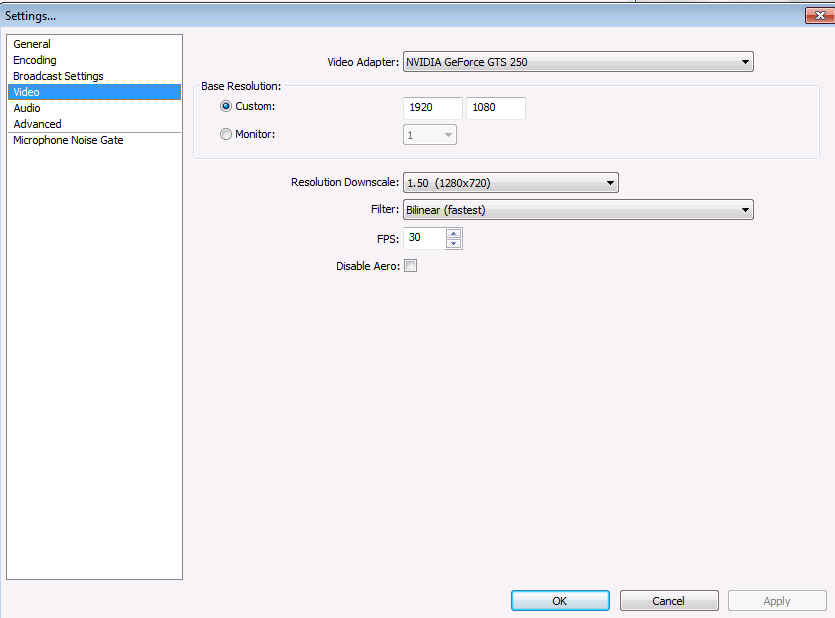
Balance visual quality with system performance:
| Setting | Recommendation |
|---|---|
| Video Adapter | Default (select a specific GPU if you have multiple adapters) |
| Base (Canvas) Resolution | Your monitor's native resolution |
| Output (Scaled) Resolution | Lower resolutions consume less bandwidth and CPU/GPU power |
| Downscale Filter | Bilinear (use Bicubic or Lanczos for better quality, but higher processing cost) |
| Common FPS Values | 30 (Note: 720p at 60 FPS often looks better than low-bitrate 1080p at 30 FPS) |
| Disable Aero | Check only if using monitor or screen capture and experiencing lag |
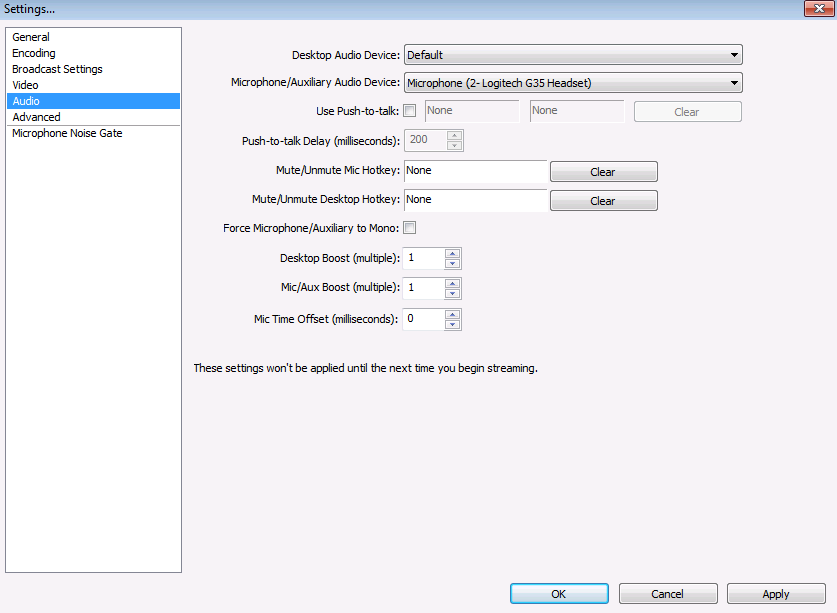
5. Audio Settings
Ensure clear sound input and output:
| Setting | Recommendation |
|---|---|
| Desktop Audio Device | Default playback device (your speakers/headphones) |
| Mic/Auxiliary Audio Device | Your dedicated headset or microphone |
| Use Push to Talk | Optional (set a custom hotkey if desired) |
| Push to Talk Release Delay | Time in ms the mic stays open after key release |
| Desktop Audio Boost | 1.00 (100%) |
| Mic/Aux Audio Boost | 1.00 (100%) |
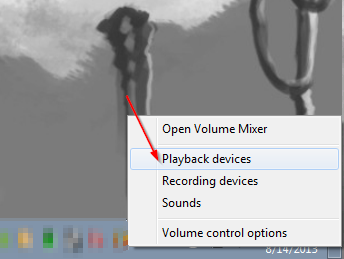
How to set Default Audio Devices in Windows:
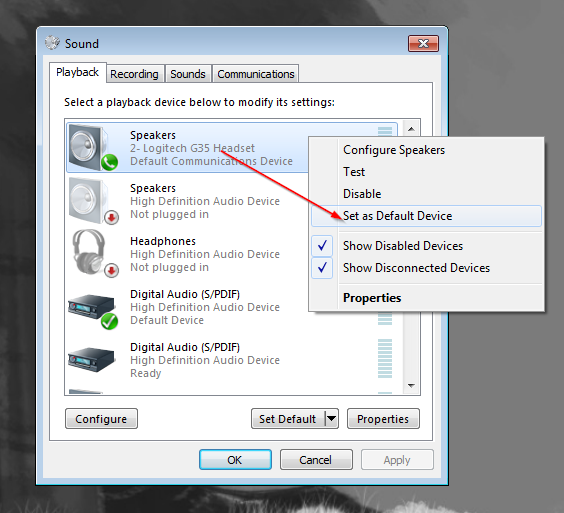
OBS Audio Settings Example:
6. Advanced Settings
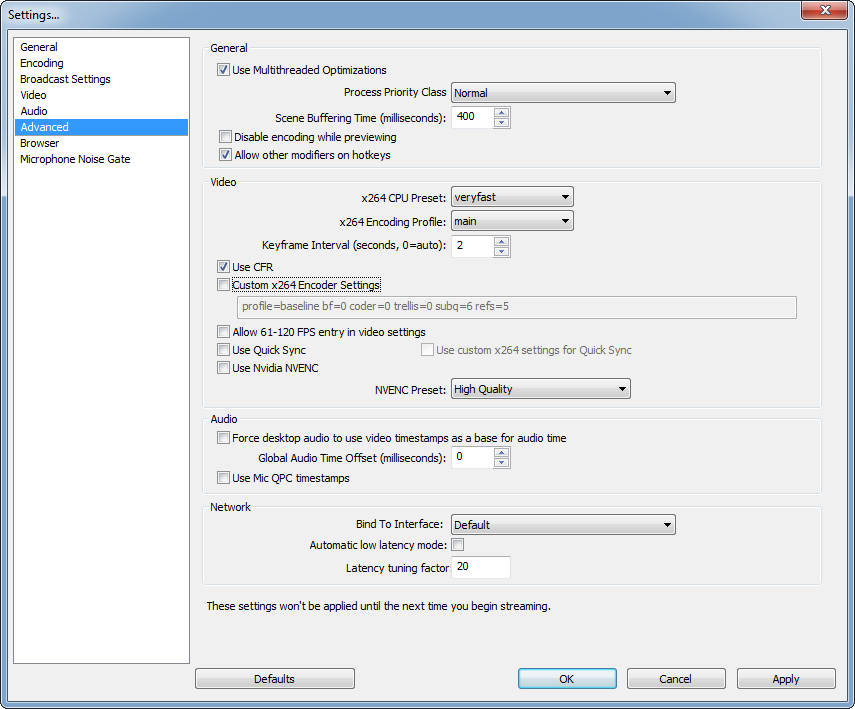
Fine-tune performance and network behavior:
Video
| Setting | Recommendation |
|---|---|
| Use multithreaded optimizations | Checked |
| Process Priority Class | Normal (or High if OBS lags) |
| Scene Buffering Time (ms) | 400 |
| x264 CPU Preset | veryfast (slower presets = more CPU intensive) |
| x264 Encoding Profile | main (ensures better compatibility with players) |
| Use CFR (Constant Framerate) | Checked |
| Keyframe Interval | 2 seconds (critical for streaming stability) |
| Allow 61-120 FPS | Unchecked |
Audio
| Setting | Recommendation |
|---|---|
| Force desktop audio to use timestamps | Check only if experiencing audio sync issues |
| Global Audio Time Offset (ms) | 0 |
| Use Mic QPC timestamps | Check only if experiencing mic sync issues |
Network
| Setting | Recommendation |
|---|---|
| Bind to IP | Default |
| Enable network optimizations | Unchecked (unless specifically advised by support) |
7. Microphone Noise Gate Settings
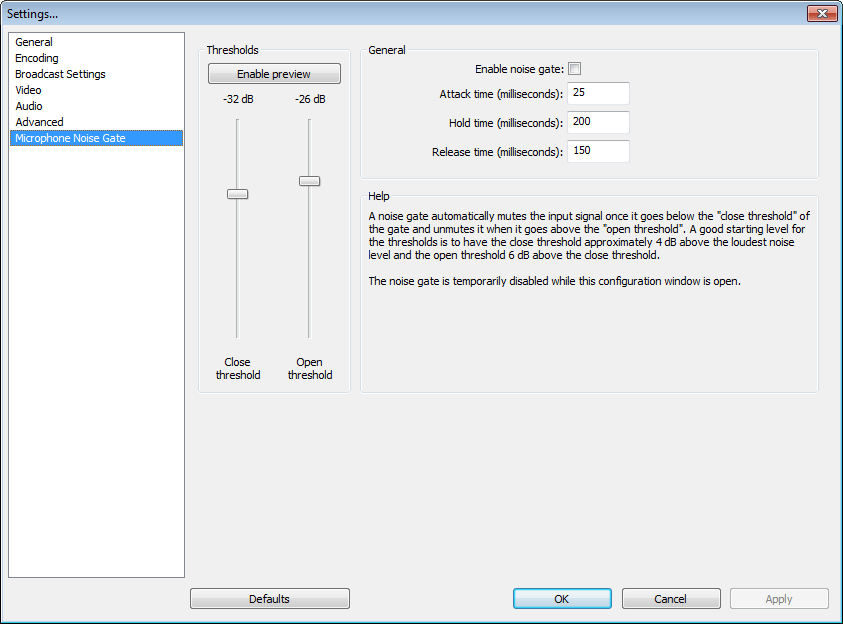
This audio filter automatically mutes your mic when you are not speaking, reducing background noise.
| Setting | Description |
|---|---|
| Close Threshold | Decibel (dB) level at which the mic mutes |
| Open Threshold | Decibel (dB) level at which the mic unmutes |
| Attack Time | Time for the mic to "spin up" (generally leave at default) |
| Hold Time | How long the gate stays open after audio falls below the threshold |
| Release Time | Inverse of attack time; how quickly it mutes after hold time ends |
Managing Scenes and Sources
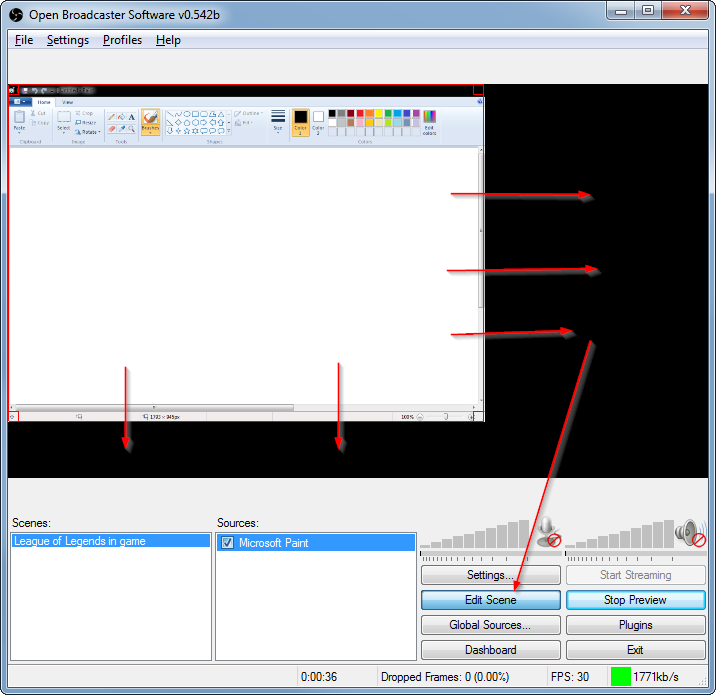
Scenes and sources in OBS are highly customizable.
Adding a Scene
- Right-click the blank space under the Scenes box in the main OBS window.
- Click Add Scene.
- Enter a descriptive name (e.g., "Main Game Screen" or "Starting Soon").
Adding a Source
Ensure your desired scene is selected, then right-click the white space under the Sources box and choose Add.
Source: Window Capture
Captures a specific application window.
| Setting | Recommendation |
|---|---|
| Window | Select the correct running program |
| Capture Method | Automatic (or Window/BitBlt if issues occur) |
| Capture Cursor | Check if you want to show the mouse pointer |
| Gamma | 1.00 |
Color Key (Chroma Key): Use this to remove a specific background color (e.g., green screen). Adjust Similarity (1–100) and Blend for edge sharpness.
Source: Display (Monitor) Capture
Captures your entire screen.
| Setting | Recommendation |
|---|---|
| Display | Select the monitor by number |
| Capture Cursor | Check if desired |
| Gamma | 1.00 |
| Disable Aero | Check if using monitor capture and experiencing lag |
Note: Monitor capture is convenient but not recommended for professional production due to potential security (showing notifications) and performance issues.
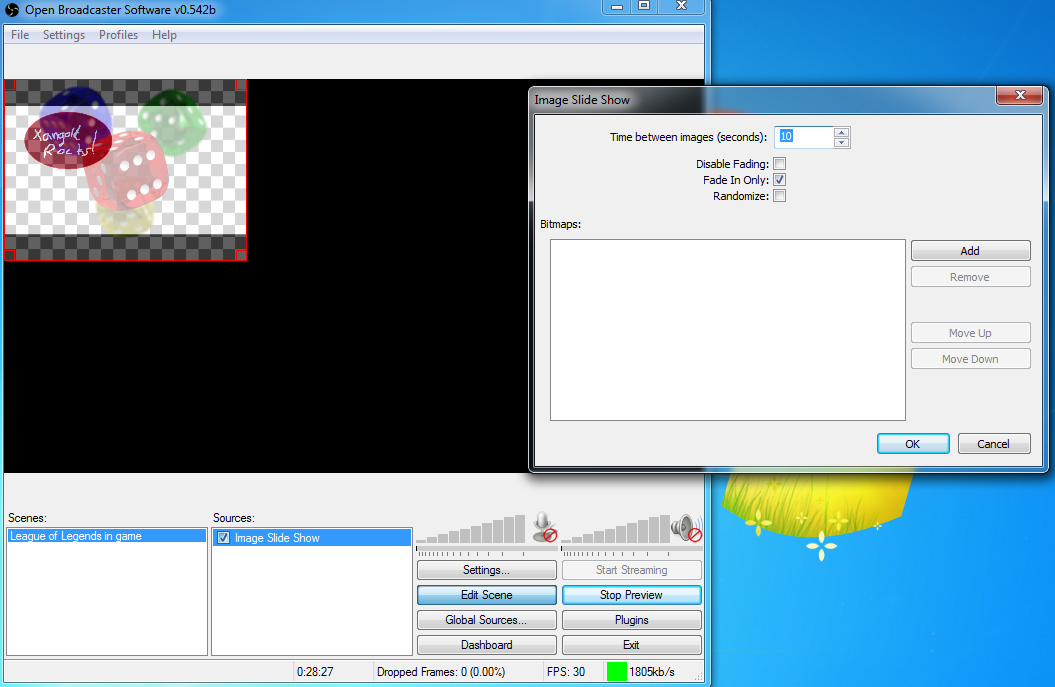
Source: Image Slideshow
Rotates through a list of images (great for "Starting Soon" screens).
| Setting | Description |
|---|---|
| Time between images | Seconds each image is displayed |
| Hide when slideshow is done | Uncheck for continuous looping |
| Randomize | Check to display images in random order |
| Add/Remove | Manage the queue of images |
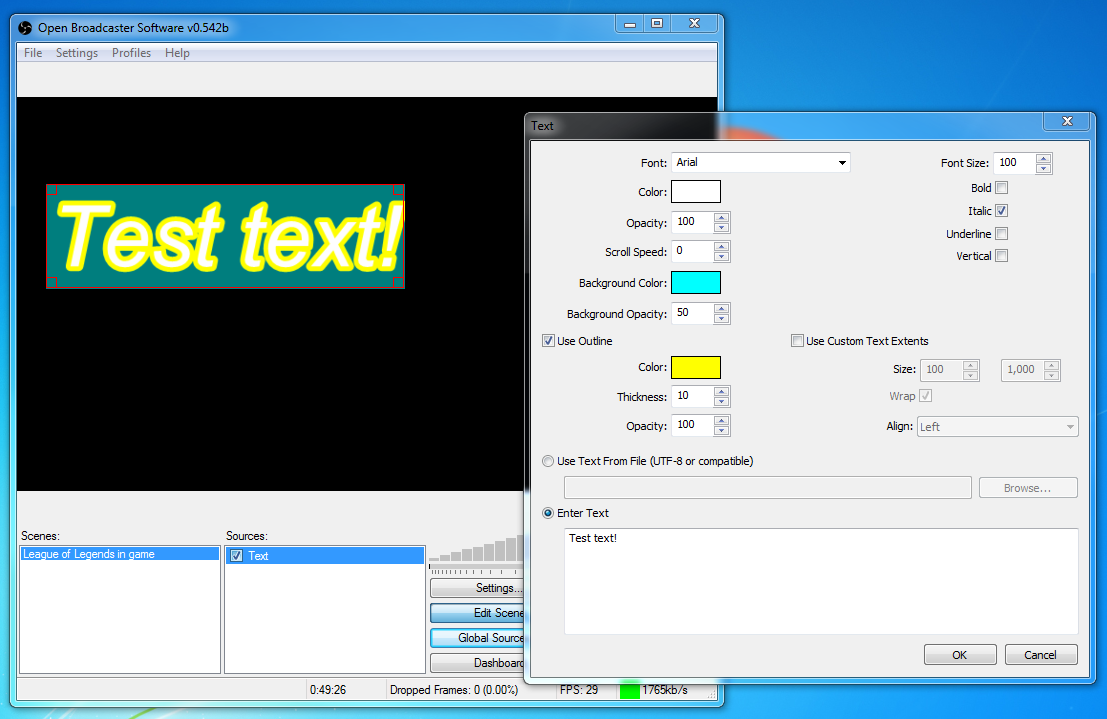
Source: Text (GDI+)
Adds customizable text overlays.
| Setting | Description |
|---|---|
| Font / Size | Select font type and size |
| Color / Opacity | Set text color and transparency |
| Background | Set background color and opacity behind the text |
| Outline | Add a border around the text for readability |
| Scroll Speed | How fast the text moves (if scrolling is enabled) |
| Read from file | Check to dynamically update text from a .txt file |
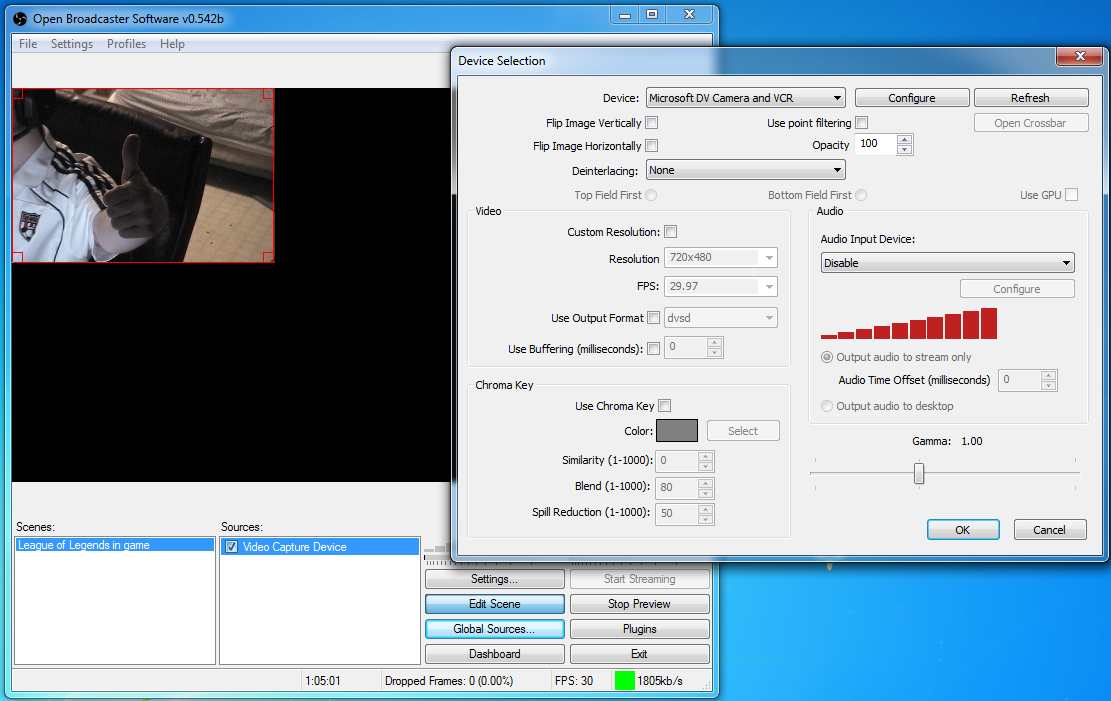
Source: Video Capture Device
For webcams, DV cameras, or external capture cards.
| Setting | Recommendation |
|---|---|
| Device | Select your specific webcam or capture card |
| Video Format / FPS | 29.97 or native framerate of the device |
| Deinterlacing | Enable only if the source has horizontal lines or distortion |
| Color Space / Range | Default (adjust only if colors look washed out) |
| Audio Output Mode | Capture audio only (for capture cards) |
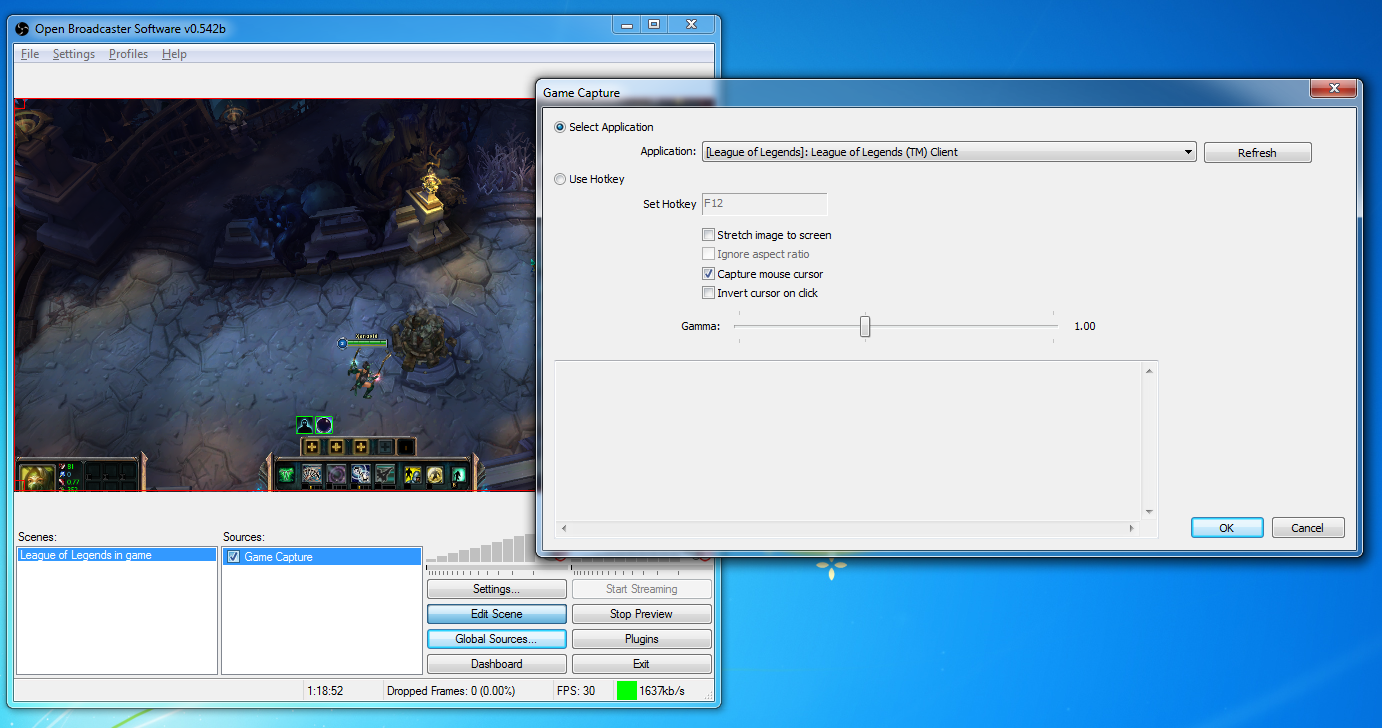
Source: Game Capture
The most efficient way to capture games, utilizing hardware acceleration.
| Setting | Description |
|---|---|
| Mode | Capture specific window (recommended) or Capture any fullscreen application |
| Window | Choose the specific game executable |
| Allow transparency | Check if the game supports it |
| Capture Cursor | Show or hide the mouse cursor on stream |
Note: Game capture is highly efficient, especially with Windows Aero enabled. If you encounter black screens, try running OBS as Administrator.
Quick Setup Summary
| Section | Key Settings to Verify |
|---|---|
| Encoding | CBR enabled, bitrate matched to resolution, AAC audio |
| Stream | Service: Custom, Server: rtmp://live.boomstream.com/live, valid Stream Key |
| Video | Base resolution set, output scaled appropriately, FPS set to 30 or 60 |
| Audio | Correct default devices selected, boost at 1.00 |
| Advanced | veryfast preset, Keyframe Interval set to 2 |
✅ Done!
Your OBS Studio is now fully configured and ready to start broadcasting high-quality live streams directly to the Boomstream platform.