How to Manage All Consumers in Boomstream: Complete Guide
We have introduced a new centralized Consumers section to help you manage all viewers across all access levels from a single dashboard. This guide explains how to use this feature effectively.
The Consumers Dashboard Overview
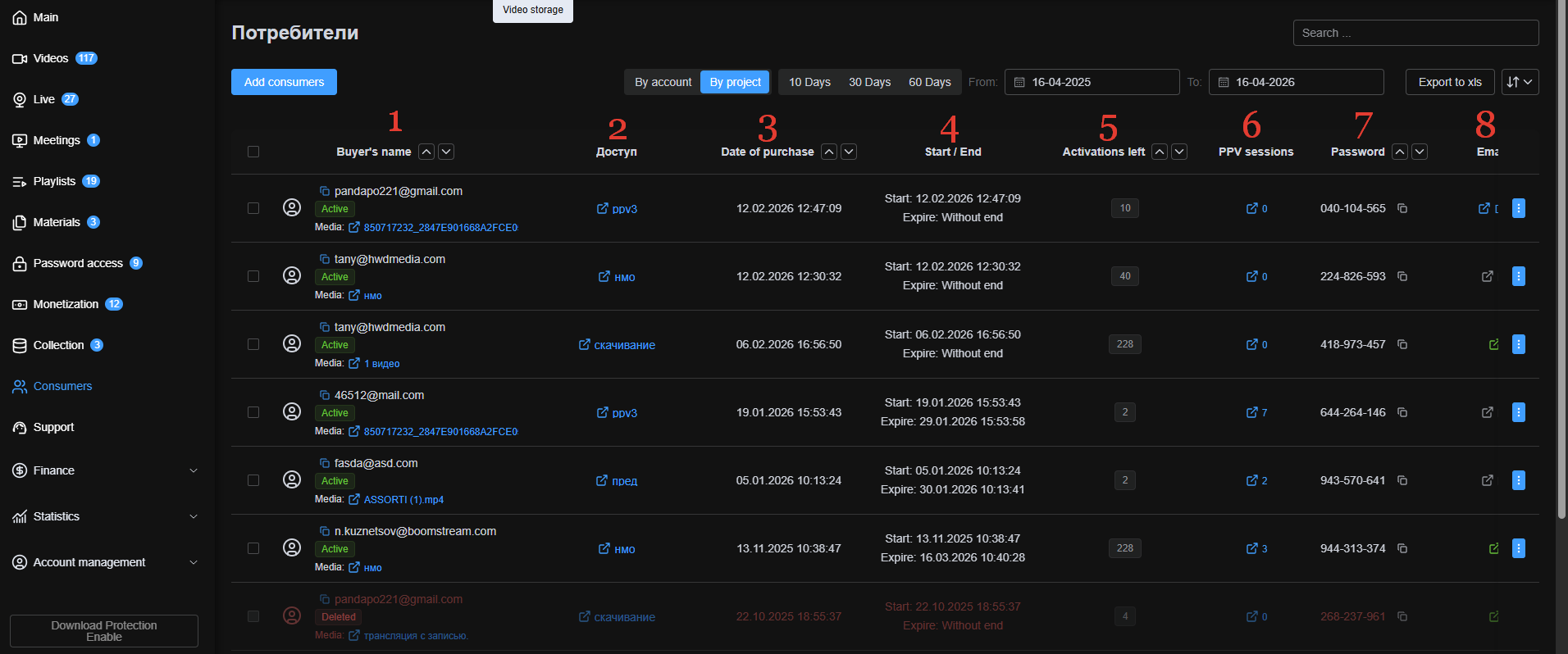
A new Consumers item is now available in the left-hand menu. Clicking it opens a comprehensive list of all consumers in your account.
Below is a detailed breakdown of each column in this view:
| Column | Description |
|---|---|
| Customer Name | Displays the customer's email address and full name. |
| Access | Shows the specific access level assigned to this consumer. Click the name to open the settings tab for that access level. |
| Purchase Date | The date the access was purchased or the user was manually added. |
| Start / End | The exact access start date and expiration date for this specific user. |
| Password Activations Left | The remaining number of times the password can be activated. |
| Sessions | Detailed session logs, including IP address, browser, and password activation location. |
| User Password | The specific password assigned to this consumer. |
| Status | Email delivery status: Not sent, Sent, Delivered, or Opened. |
How to Add a New Consumer
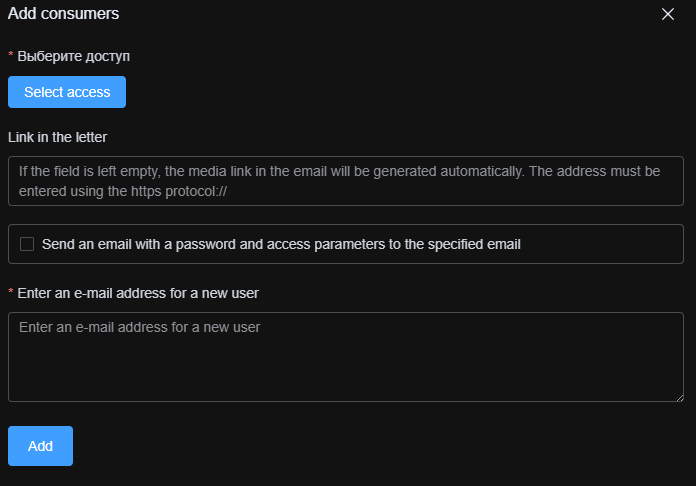
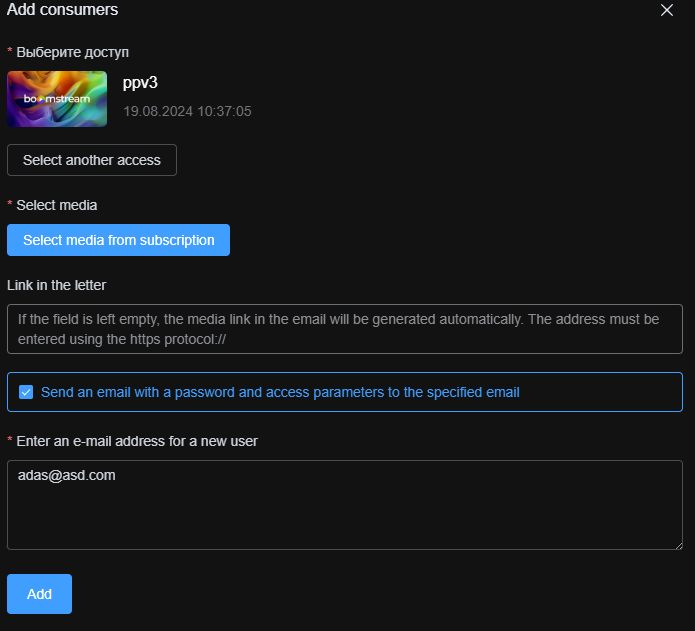
You can manually add consumers directly from this section:
- Click the Add consumers button at the top of the page.
- In the window that opens, select the target access level.
- Click the Select media button that appears, and choose the specific media from that access level.
- Enter the consumer's email address and save.
Search and Sort Functionality
This section is designed for quick navigation, especially for accounts with multiple access levels and large consumer bases.
Search capabilities:
- Search within the current project or across your entire account.
- Search by typing a partial or full email address.
- Filter by specific dates or date ranges.

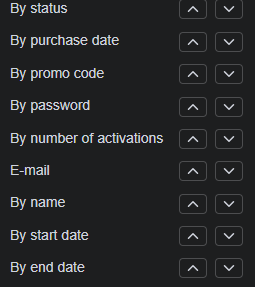
Sorting capabilities:
- Use multiple sorting parameters to organize the consumer list by any column (e.g., purchase date, status, or access level).
How to Edit Consumer Access
To modify an existing consumer's settings:
- Locate the consumer in the list.
- Click the blue three-dot button on the far right.
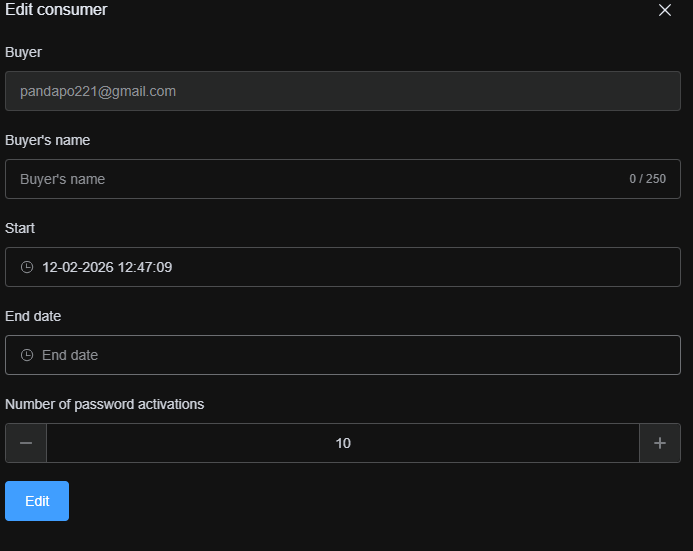
- Select Edit from the dropdown menu.
- Adjust the consumer's access parameters in the tab that opens.
- Click Change to save your updates.