
How to Recover Access to Purchased Video Content in Boomstream
If a customer has purchased video content but their access is limited or lost, they can easily restore it using the Recovery code. Follow this step-by-step guide to resolve access issues.
Step-by-Step Recovery Instructions
1. Locate the Recovery Button
If access to the purchased content is restricted, the viewer will see a prompt in the player. To begin the recovery process, click the large gray Recovery code button.
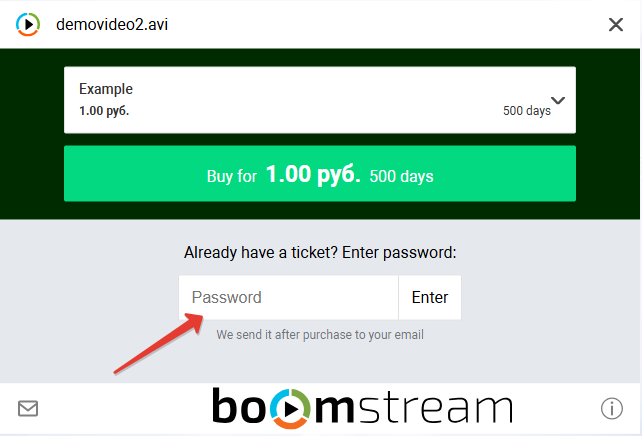
2. Find Your Recovery Code
The unique Recovery code was automatically sent to the email address provided during the purchase process. Check your inbox (and spam/junk folder) for this email.
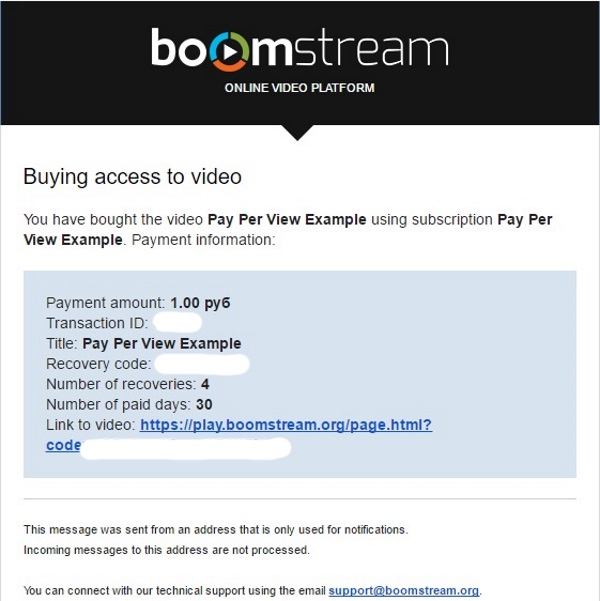
3. Troubleshooting "Password is Invalid" Errors
If you receive a "Password is invalid" message after submitting the recovery code, it indicates one of the following issues:
| Issue | Description |
|---|---|
| Incorrect Code | The entered recovery code does not match the one originally sent to the customer's email. |
| Access Expired | The allocated access period for the purchased content has ended. |
| Activation Limit Reached | The maximum number of allowed device activations for this specific code has been exceeded. |

Quick Recovery Checklist
| Step | Action |
|---|---|
| 1 | Click the large gray Recovery code button in the player |
| 2 | Enter the exact recovery code sent to the purchase email address |
| 3 | If access is not restored, verify the code, check for expiration, or confirm the activation limit has not been reached |
✅ Done!
By following these steps, the customer should now be able to successfully restore access to their purchased video content.