
How to Purchase Video on Demand (VOD) or Live Broadcasting on Boomstream
Purchasing access to Video On Demand or Live Broadcasting on the Boomstream platform is a simple, multi-step process. Follow this guide to complete your purchase successfully.
Step 1: Choose Your Subscription
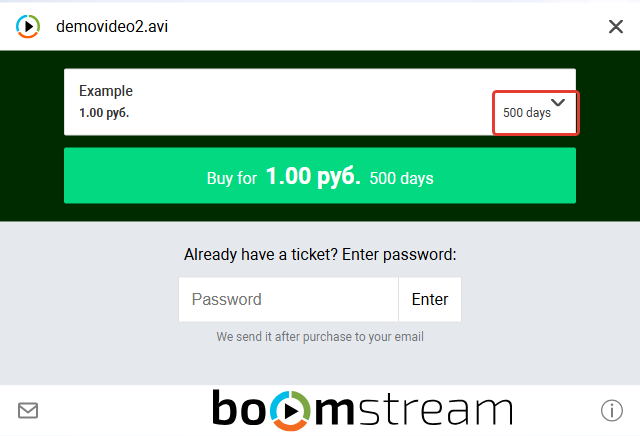
On the subscription page, you will see the available access options.
-
Single Subscription: In most cases, there is only one option, displayed as a prominent orange button with the price. This page also shows the exact access period granted after purchase.

-
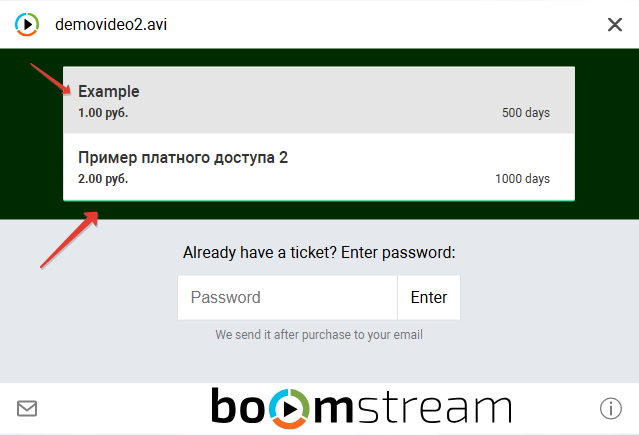
Multiple Subscriptions: If the content creator offers multiple tiers, you can choose the variant that best suits your needs (e.g., 1 ruble for 500 days or 2 rubles for 100 days).
Step 2: Select Payment Method and Enter Email
Available Payment Methods
- Russian bank card
- Non-Russian bank card
Email Confirmation
After selecting your preferred payment method, enter your email address and confirm the payment details.
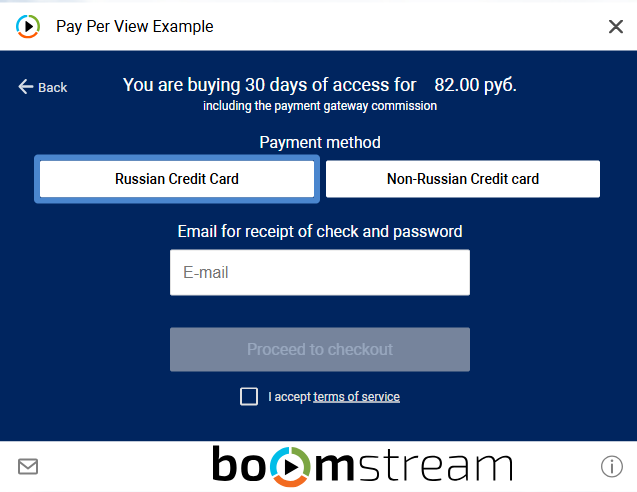
⚠️ Important: Double-check your email address before proceeding. The payment system does not verify the email format, and an incorrect address will prevent you from receiving your access credentials.
Note: The final cost of the subscription includes the payment gateway fee, which varies depending on the selected payment method.
Step 3: Complete the Payment
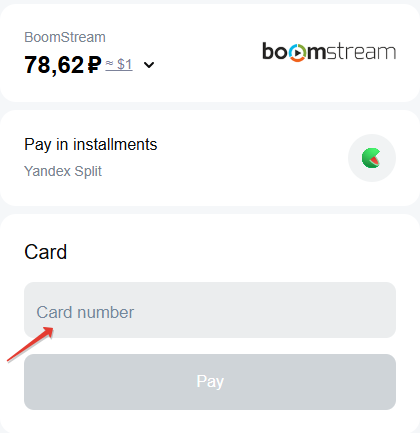
You will be redirected to the secure payment system page. Enter your card details and complete the transaction.
Step 4: Return to the Player and View Content
Depending on your browser behavior, follow the appropriate scenario:
| Scenario | Required Action |
|---|---|
| Payment made in a separate browser tab | The video player will start automatically once the payment is confirmed. |
| Payment page opened instead of the player tab | Manually navigate back to the original player window from the payment system interface. |
Post-Purchase Email Confirmation
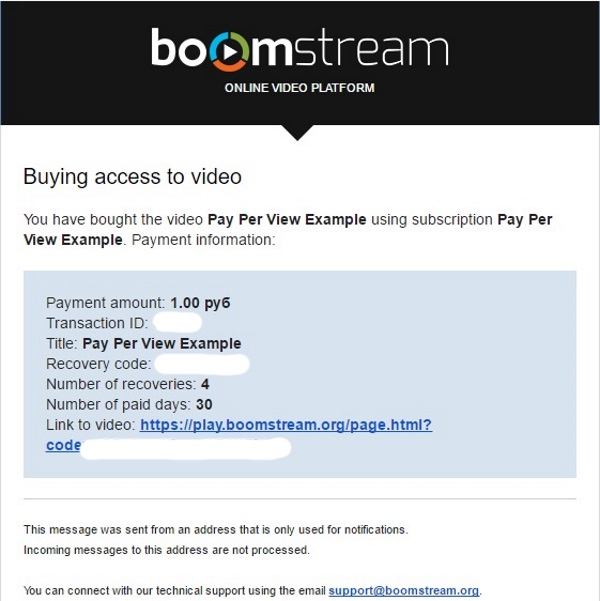
Shortly after payment, you will receive an automated email at the address you provided. This email contains:
- A direct link to the video content player.
- A unique recovery code for future access restoration.
Step 5: Important Notes for Live Broadcasting
If you are purchasing access to a Live Broadcast, you must verify the date and time of the stream with the content seller.
If the broadcast has not yet started or has already ended, the player will display the stream name along with the following message: "Live Broadcasting is inactive now".

Quick Purchase Checklist
| Step | Action |
|---|---|
| 1 | Choose your desired subscription (review price and access period) |
| 2 | Select a payment method and carefully enter your email address |
| 3 | Complete the transaction on the secure payment system page |
| 4 | Return to the player tab to begin viewing your content |
| 5 | For live broadcasts, verify the stream schedule with the seller |
✅ Done!
You have successfully purchased access to the video content and can now start watching.