
How to Set Up Restreaming to Multiple Platforms in Boomstream
To broadcast your live stream to multiple platforms simultaneously, you need to specify the destination server addresses and broadcasting keys in your stream settings.
Step-by-Step Configuration Guide
1. Open Your Stream
Navigate to the Live section in your dashboard and click on the name of the stream you want to configure.

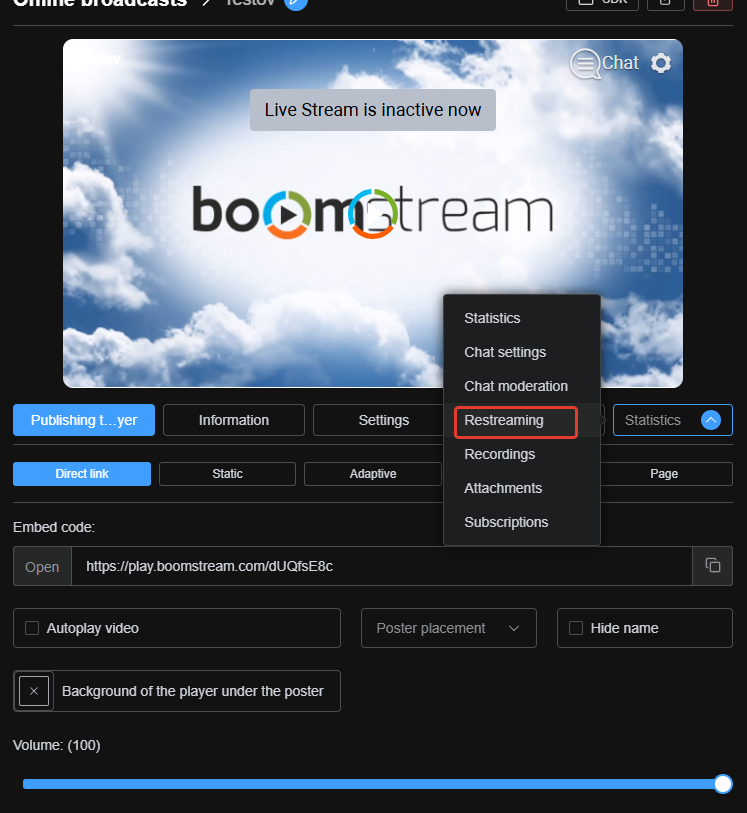
2. Access Restreaming Settings
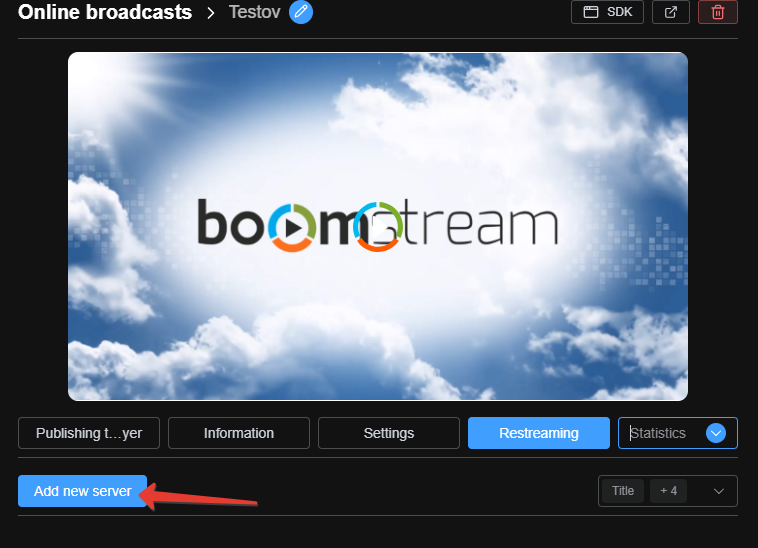
In the stream settings window, go to the Restreaming tab and click the Add new server button.
3. Configure the Restream Server
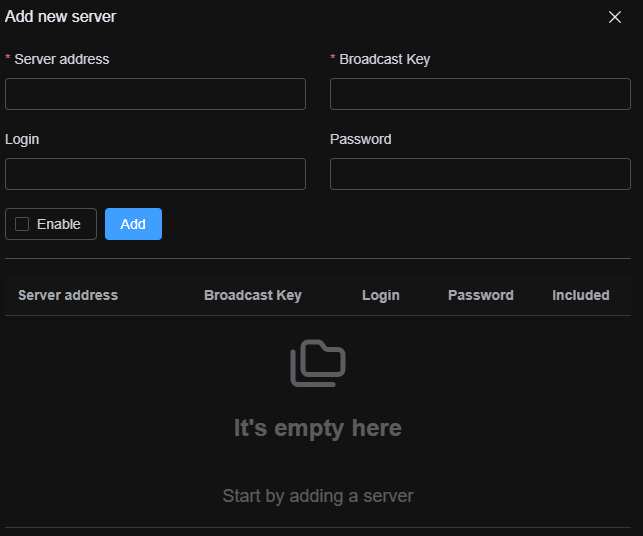
Enter the destination server address and the streaming key. Ensure the Enable checkbox is checked to activate the stream.
Note: In the custom stream server settings, you can specify any server address. If the destination platform requires additional authorization, enter the login and password in the dedicated fields below.
Special Configuration for Telegram
To restream to Telegram, you must explicitly add port :443 to the server link. The URL should be formatted as follows:
dc4-1.rtmp.t.me:443/s/
✅ Done!
Your live stream will now be broadcast to all configured platforms simultaneously.