
How to Import Videos from Google Drive to Boomstream
You can easily upload videos directly from your Google Drive to your Boomstream account. Follow this step-by-step guide to set up the integration.
Step 1: Initiate the Upload Process
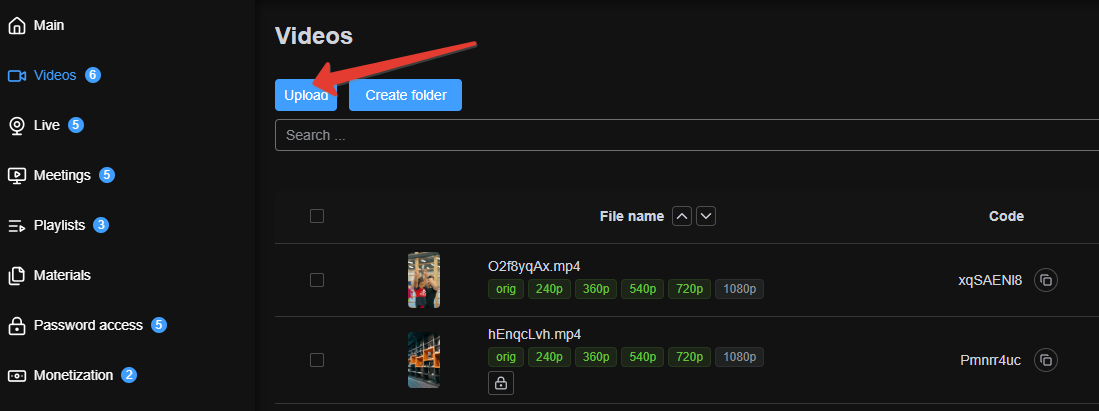
Navigate to the Videos section in your Boomstream dashboard and click the Upload button.
Step 2: Select Google Drive as the Source
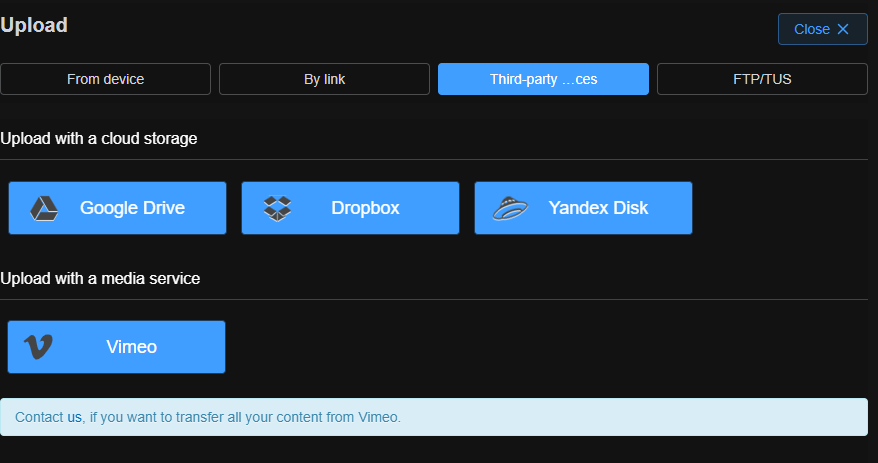
On the upload page, choose the Google Drive import method.
Step 3: Authorize Your Google Account
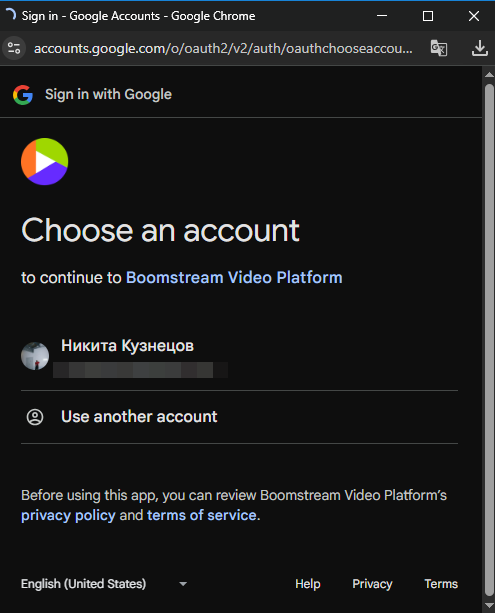
A Google authorization window will appear. Enter your credentials or select the Google account linked to your Drive.
Step 4: Select Your Files
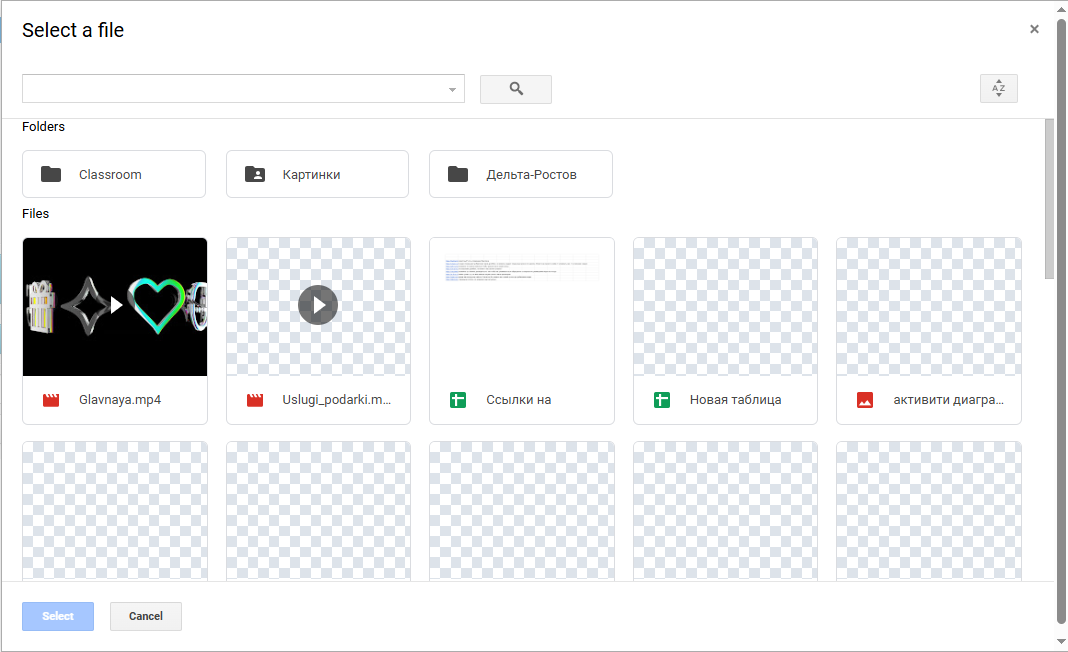
After successful authorization, a window will display your available Google Drive folders and files, ready for selection.
⚠️ Important: File Access Requirements
Only videos with shared access can be imported into Boomstream.
- Available for upload: Videos that display a visible thumbnail/preview image.
- Not available: Regular files or private videos, which appear as gray-and-white checkerboard squares.

How to Enable Shared Access in Google Drive
If your video is not appearing correctly, follow these steps to share it properly:
- Open Google Drive and locate the video file you want to upload.
- Right-click the video and select Share → Share.

- In the pop-up window, under the General access section, change the setting to Anyone with the link.

✅ Done!
Once shared, these videos will immediately appear as available for selection and upload in the Boomstream menu.