
How to Connect PayPal to Boomstream: Step-by-Step Integration Guide
Connecting your PayPal account to the Boomstream platform allows you to accept credit card and PayPal payments directly to your account without any transaction fees from Boomstream (you are only charged for standard storage and bandwidth). Boomstream integrates PayPal as a direct paywall within the video player.
If you already have a PayPal account, follow this guide to create an API application and configure the necessary webhook.
Step-by-Step PayPal Integration
1. Log in to the PayPal Developer Portal
Navigate to the PayPal Developer Applications page and log in to your account using the button in the upper right corner.
2. Create a New Application
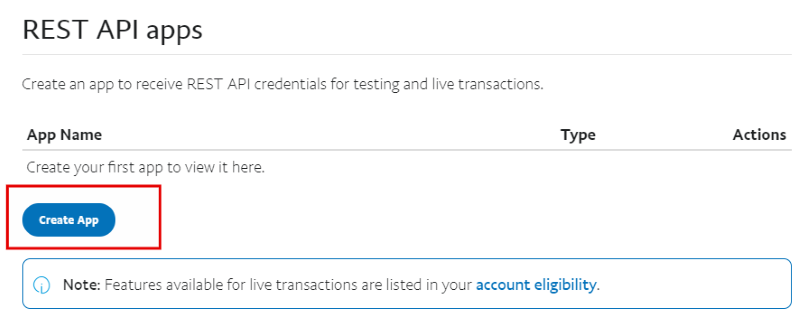
On the dashboard, click the Create App button.
3. Name Your Application
Enter a descriptive name for your new application (e.g., "Boomstream Payments") and click Create.
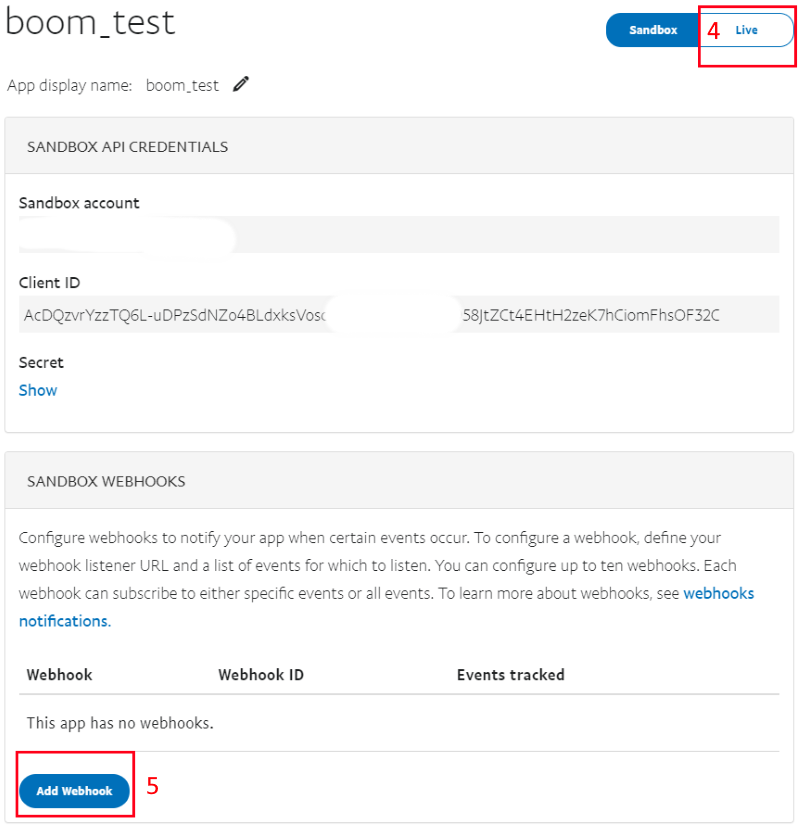
4. Switch to Live Mode
By default, new applications are in Sandbox (test) mode. You must switch to Live mode to accept real payments.
⚠️ Important: PayPal may request additional business information or verification before allowing you to switch to Live mode.
5. Add a Webhook
Scroll down to the Webhooks section and click Add Webhook.
6. Enter the Webhook URL
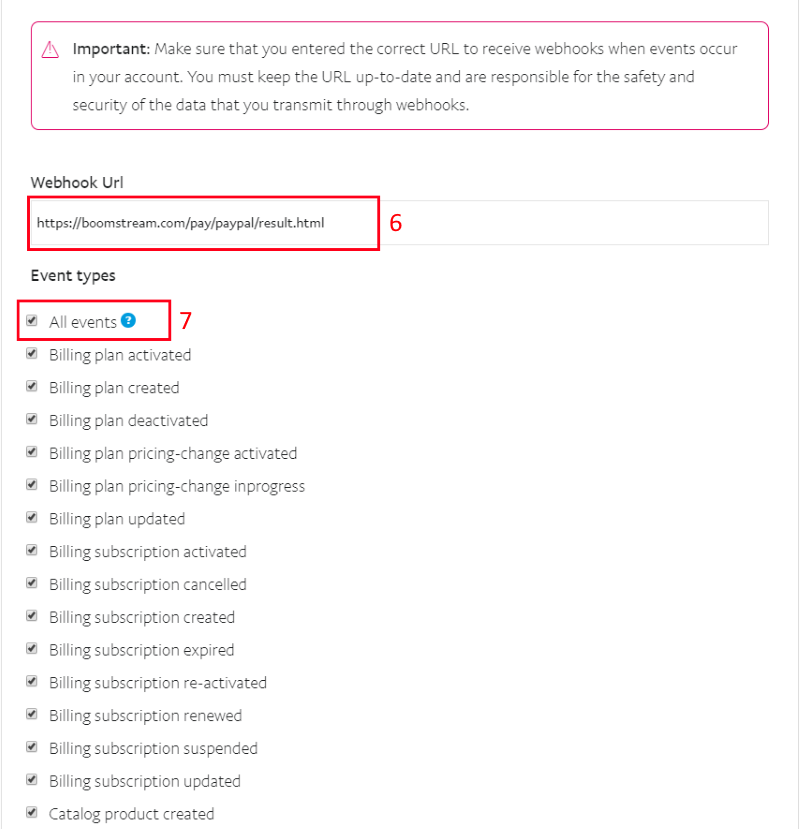
Paste the following Boomstream webhook URL into the designated field:
https://boomstream.com/pay/paypal/result.html
7. Select Event Types
Under "Event types", select the checkbox for All events to ensure Boomstream receives all necessary transaction notifications.
8. Save the Configuration
Click the Save button at the bottom of the page to finalize the webhook setup.
Provide Credentials to Boomstream Support
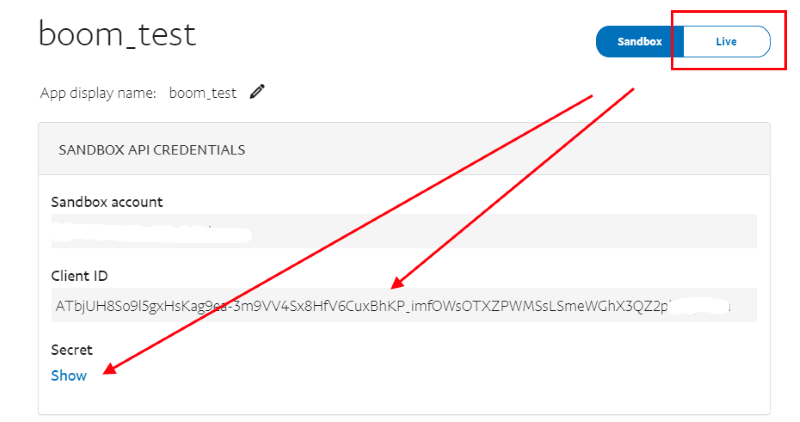
To complete the integration, our support team needs three pieces of information from your PayPal application:
| Credential | Description |
|---|---|
| Client ID | Found in your PayPal application dashboard. |
| Secret | Found next to the Client ID (click "Show" or "Reset" if hidden). |
| Currency | The default currency of your PayPal account (e.g., USD, EUR, RUB). |
Note: The screenshot below shows the Sandbox environment for illustration, but you must copy the credentials from your Live application as described in Step 4.
Final Step: Submit Your Request
Open a support ticket directly from your Boomstream account and provide the following information:
- Client ID
- Secret
- Currency
Quick Setup Checklist
| Step | Action |
|---|---|
| 1 | Log in to the PayPal Developer Portal |
| 2 | Click Create App |
| 3 | Name your application and create it |
| 4 | Switch the application to Live mode |
| 5 | Click Add Webhook |
| 6 | Enter the Boomstream webhook URL |
| 7 | Select All events and click Save |
| 8 | Copy your Client ID and Secret |
| 9 | Send credentials and currency to Boomstream support |
✅ Done!
Once our support team processes your request and completes the backend configuration, you will be able to accept PayPal payments directly through the Boomstream video player.