How to Create a Registration Form for Video or Live Stream in Boomstream
To capture viewer data and restrict access to your content, you can create a registration (data collection) form. Follow this step-by-step guide to set it up.
1. Upload or Create Content
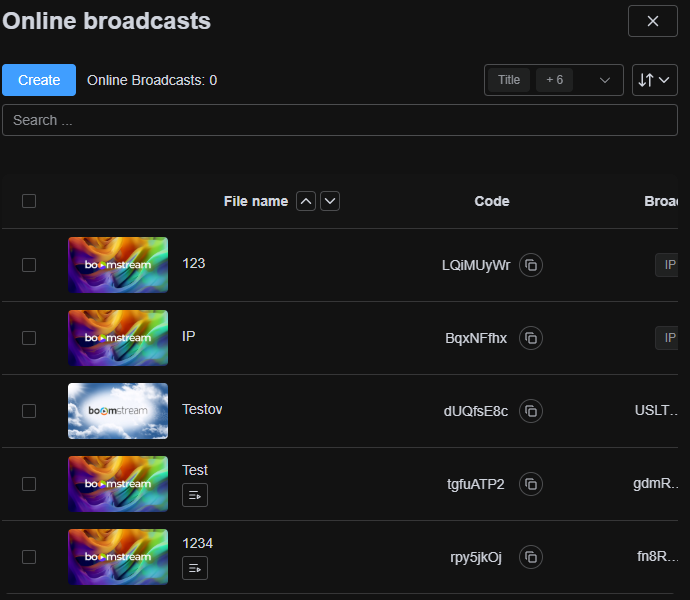
First, upload a video to the Boomstream system or create a Live Broadcast.
2. Create a Data Collection Form
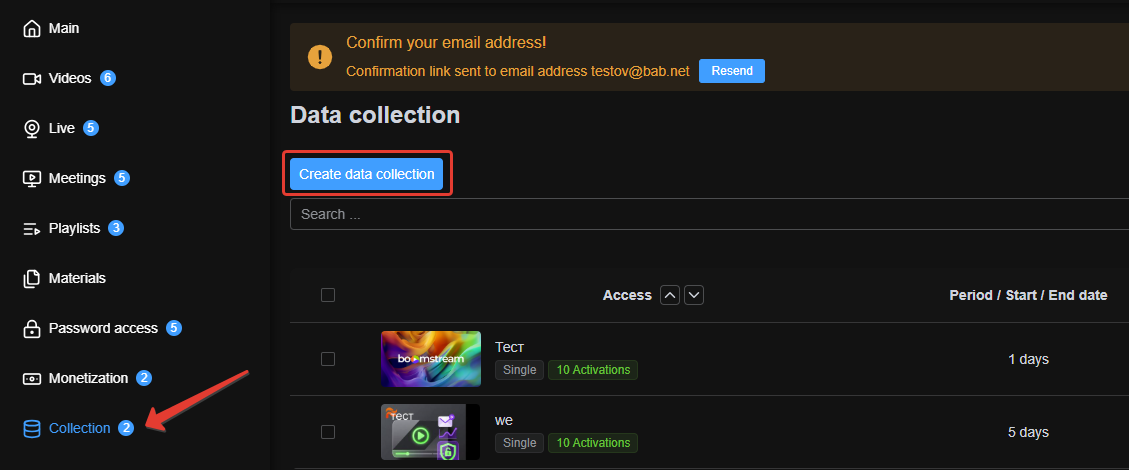
Navigate to the "Data Collection" section. Enter the author's information in the "Seller Contacts" field and click the "Create Data Collection" button.
⚠️ Important: The information provided in the "Seller Contacts" field is public and will be visible to the audience.
3. Configure Data Collection Parameters
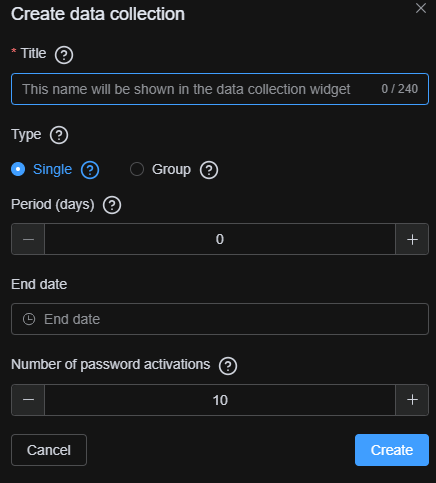
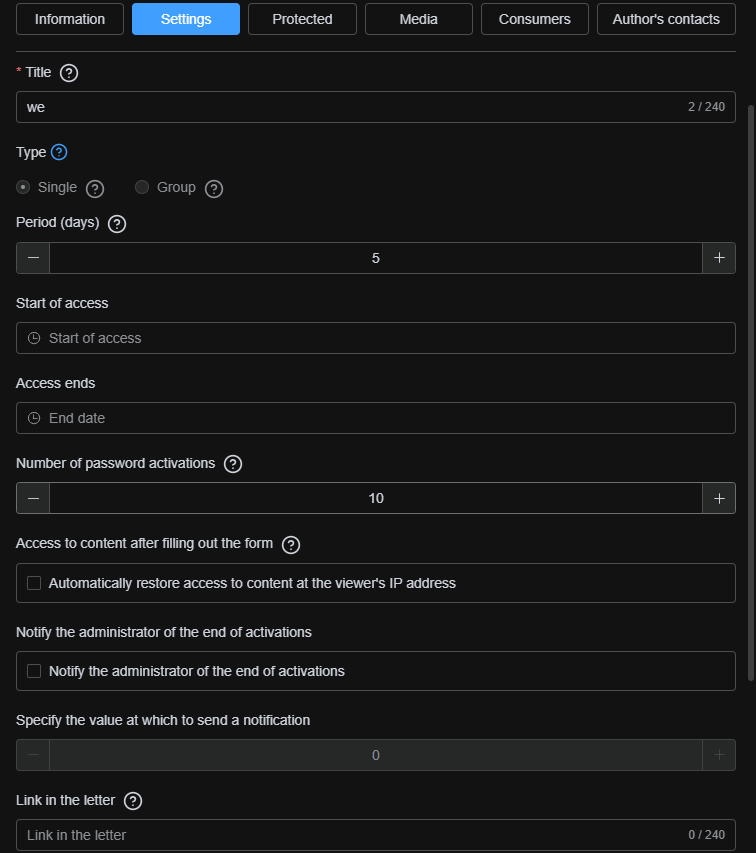
After creation, a card with comprehensive settings will open. Configure the following parameters:
| Parameter | Description |
|---|---|
| Title | The name displayed on the data collection page. |
| Type | Single: User gets access only to the specific video/broadcast they registered for. Group: User gets access to all videos/broadcasts included in this data collection. |
| Period | The number of days the user has access to the content. |
| Access Start Date | (Optional) The exact date and time when access begins. Leave blank if not needed. |
| Access End Date | The exact date and time when access expires. (Note: This parameter takes priority over the "Period" parameter). |
| Number of Activations | The maximum number of devices from which a single user can log in. |
| Access after filling form | After entering the password, the system remembers the device's IP address and sets browser Cookies. Subsequent authorizations use Cookies. If both the IP and Cookies differ from the database records, the password widget will reappear. |
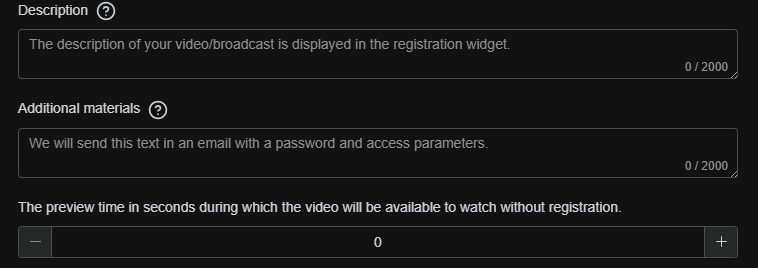
| Description | A brief description of your video or broadcast. |
| Additional Materials | Links to external resources (e.g., a cloud storage link for a recipe or required materials). |
| Collection Mode | Data Collection: Viewer enters their full name and email to gain access. If using the Boomstream chat, they are auto-logged in with this name. Data is saved to the "Consumer List" and can be exported to XLS. Restriction: Viewer gains access only if their entered data exactly matches a record pre-existing in the "Consumer List" (added manually, via API, or via a previous Data Collection). |
| Allow Download | Allows the viewer to download the original video after watching. (Does not work if Download Protection is enabled). |
Download Protection Settings
The following parameters are only available if Download Protection is enabled:
| Parameter | Description |
|---|---|
| Preview Time | The time (in seconds) a viewer can watch the video before the registration form appears. |
| Dynamic Watermarks | Displays the viewer's email, name, or IP address on the screen every 5 seconds in a small font. (Note: Does not work on iOS mobile devices). |
4. Restrict Access to Content
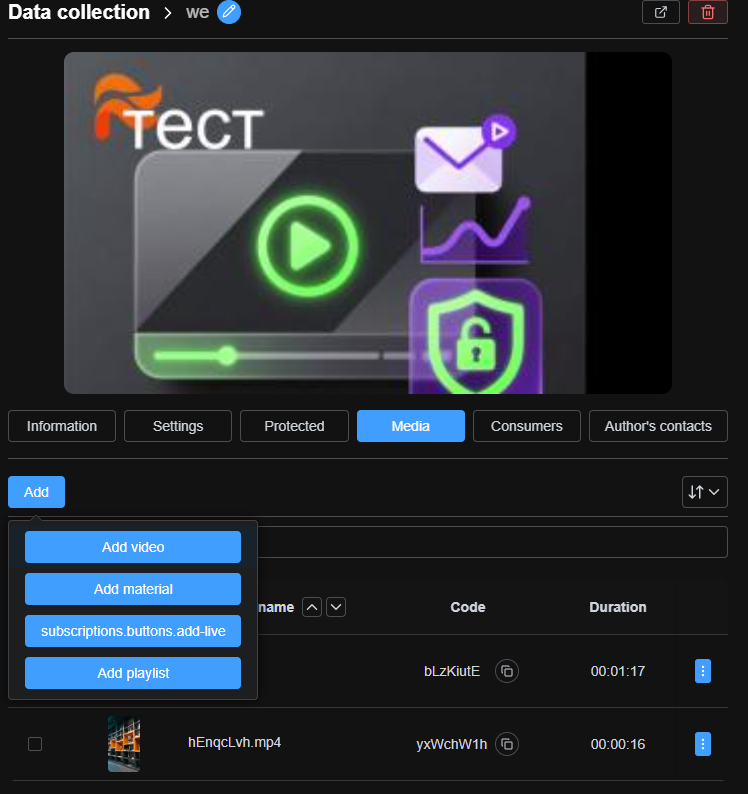
Link your content to the form by adding the video or live broadcast in the Media tab of the access card.
5. Get Player Embed Code
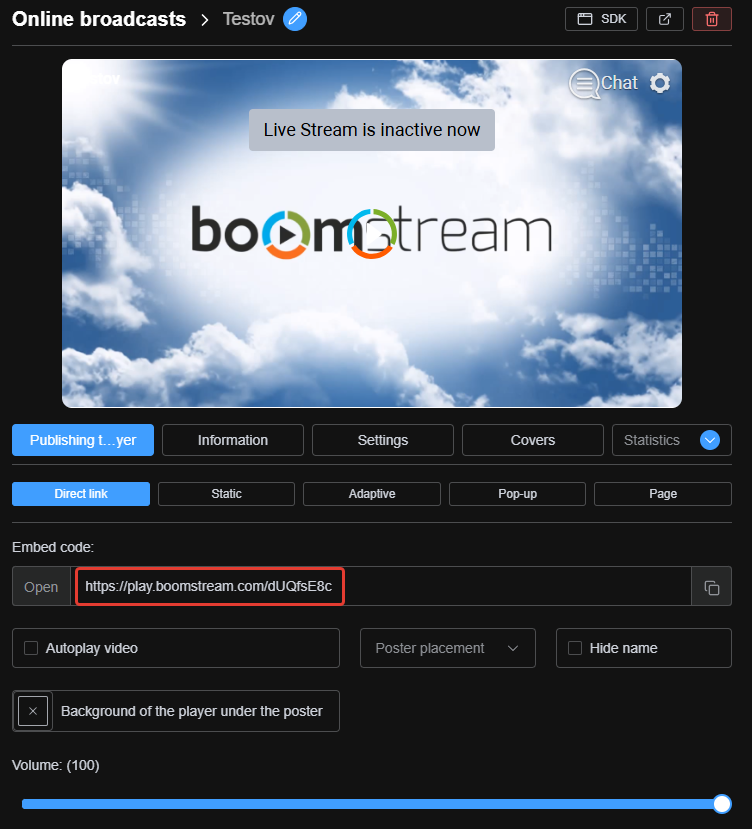
Retrieve the player's iframe embed code or the direct link to the content from the Player Publishing tab.
6. Example: Player with Data Collection
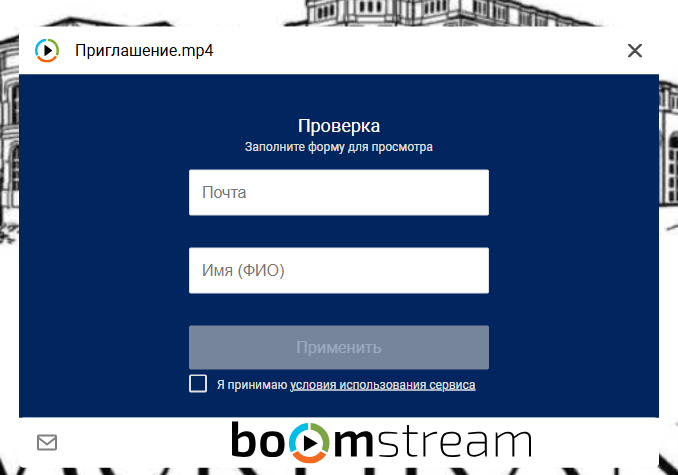
Below is an example of how the Boomstream player looks when the data collection form is enabled.
7. View and Manage the Consumer List
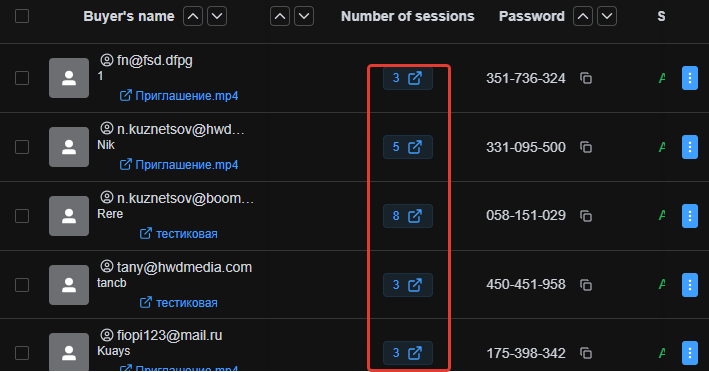
You can view all viewers who registered via the form in the Consumers tab within the access card.
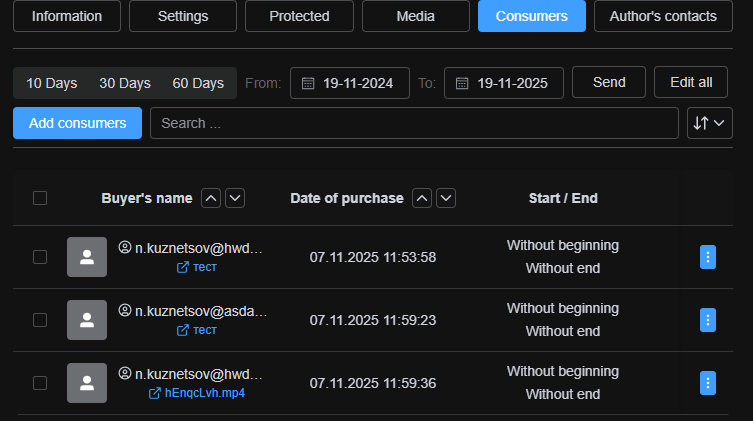
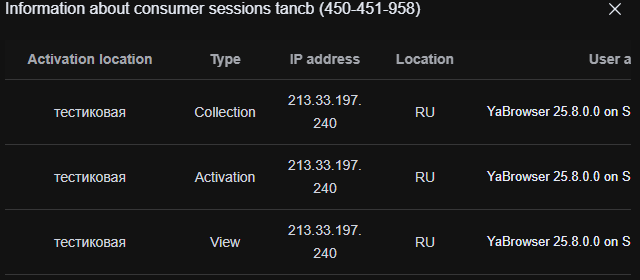
From this list, you can modify access parameters for individual viewers. Additionally, the Sessions section provides detailed logs, including the device used, IP address, and total viewing time.