
How to Use Boomstream Videos as Background on Your Website
Modern websites frequently use background videos to create engaging visual experiences. These videos play continuously in a loop without any player control buttons. Below is a step-by-step guide on how to get a direct MP4 link from Boomstream for use in your own third-party HTML5 player.
Step-by-Step Instructions
1. Upload and Wait for Transcoding
After uploading a video to the Boomstream platform, you must wait for the transcodes to be generated. These are separate MP4 files created for each available resolution.
Note: If the original file was uploaded in 720p quality, the maximum available transcode will also be 720p.
Once the transcodes are fully processed and turn green, click on your video's name to open its details.

2. Navigate to Player Publishing
On the video details page, click on the Player Publishing tab.

3. Select the MP4 Tab
In the section that opens, switch to the MP4 tab to access direct video file links.
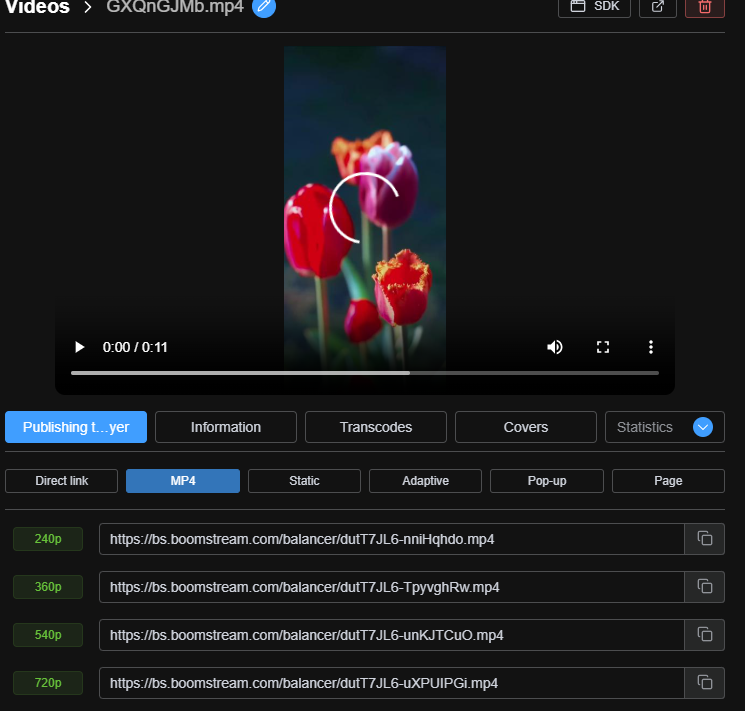
Hover over the green quality icons to view detailed specifications for each resolution:
- Video resolution
- Video bitrate
- Audio bitrate
Select the quality you need, copy the direct link, and embed it on your website.
Calculating Background Video Traffic
A common question is: How do I estimate the video traffic generated by background playback on my site?
If you have a new website without historical data on average user session duration, consider benchmarking against competitors.
⚠️ Important: As long as a website tab remains active for a visitor, Boomstream continuously streams traffic from our servers. To estimate your monthly traffic consumption, multiply the average time spent on the page by the number of daily visitors and the video bitrate.
⚠️ Critical Note for iOS Devices
On iOS devices, a gray background may appear while the video is loading. To ensure seamless playback across all devices (including iPhones and iPads), append the parameter #t=0.001 to the end of the MP4 link.
Example of a correctly formatted iOS-compatible link:
https://cdnv.boomstream.com/balancer/LtfcPRjp-z9Z1DD2U.mp4#t=0.001
Quick Summary Checklist
| Step | Action |
|---|---|
| 1 | Upload video and wait for green transcodes |
| 2 | Navigate to the Player Publishing tab |
| 3 | Select the MP4 tab and choose your desired quality |
| 4 | Copy the direct link and embed it on your website |
| 5 | Append #t=0.001 to the URL for iOS compatibility |
✅ Done!
Your direct MP4 link is now ready to be used as a fully functional background video on your website.