
How to Provide Free Access to Content in Boomstream (Manual Addition)
To grant a specific viewer free access to your protected content, you can manually add them as a consumer. Follow this step-by-step guide to set up free access and automatically send the credentials via email.
Step-by-Step Instructions
Step 1: Navigate to the Access Section
Go to the Paid Access or Password Access section in your dashboard and click on the name of the specific access rule you want to modify.
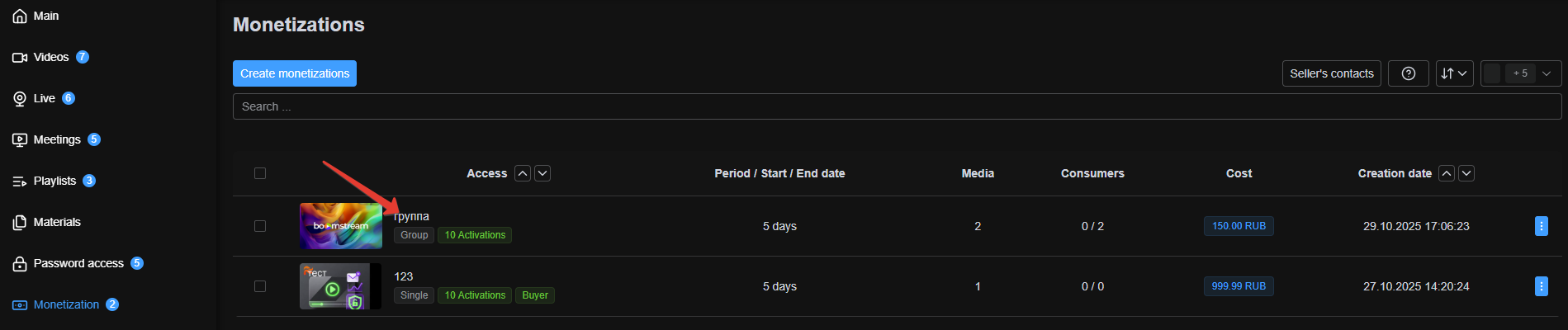
Step 2: Open the Consumers Tab
Inside the access card, navigate to the Consumers section to manage individual viewers.
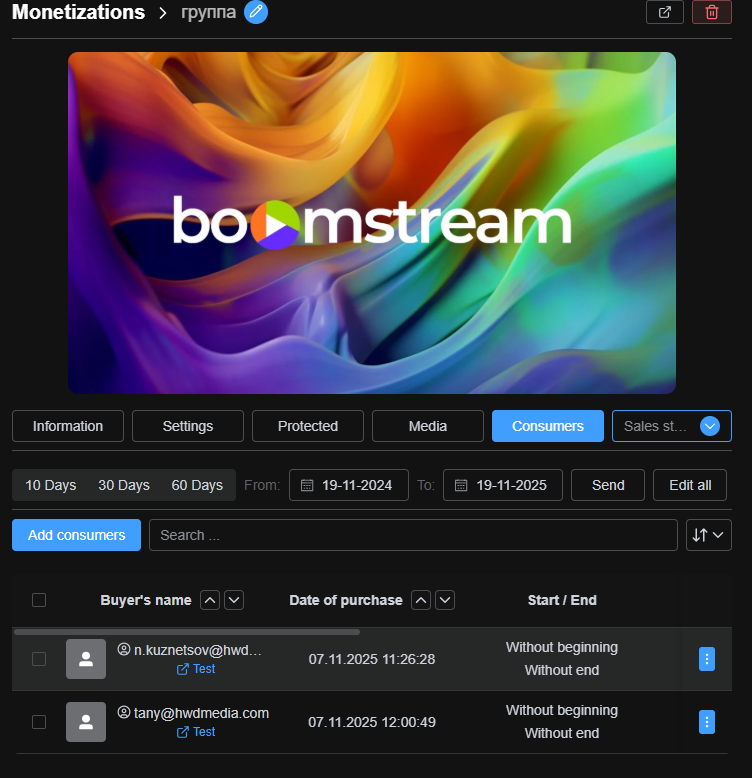
Step 3: Initiate Consumer Addition
In this section, click the Add Consumer button.
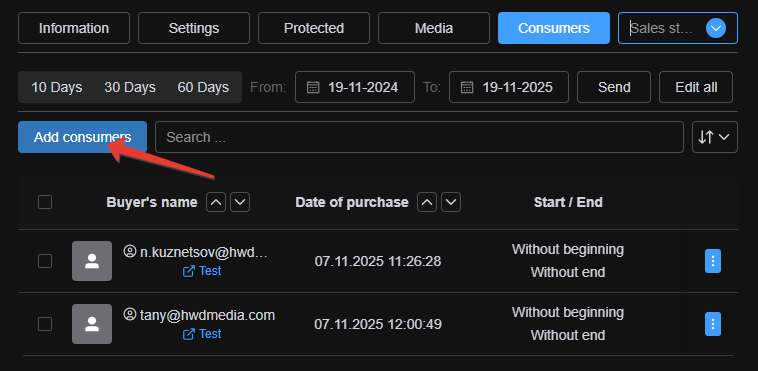
Step 4: Configure Consumer Details
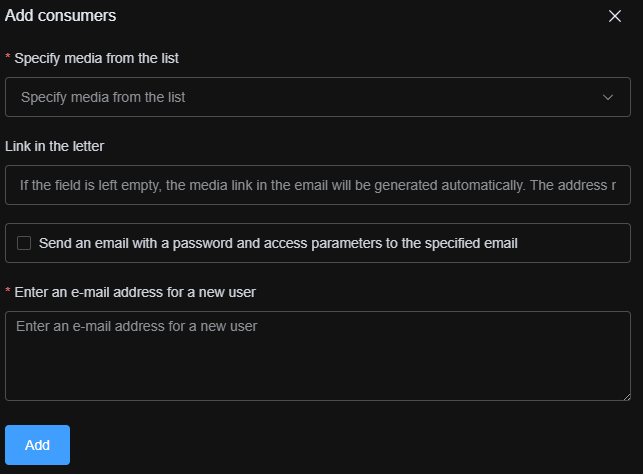
In the window that opens, complete the following fields:
- Select the specific media (video or stream) you are granting access to.
- Check the box for "Send an email with the password and access parameters to the specified email address".
- Enter the viewer's email address in the provided field.
- Click the Add button to save.
Step 5: Viewer Receives Access Email
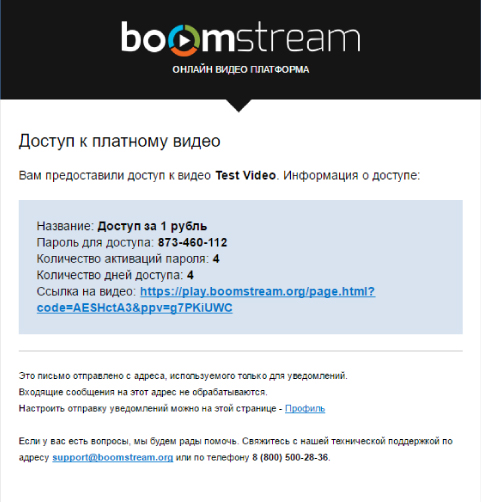
After manually adding the viewer, an automated email will be sent to the provided address. This email contains:
- A direct link to the video content.
- The specific access parameters.
- The unique access password.
Quick Setup Checklist
| Step | Action Description |
|---|---|
| 1 | Go to Paid Access or Password Access and select the target access rule |
| 2 | Navigate to the Consumers section |
| 3 | Click the Add Consumer button |
| 4 | Select media, enable email notification, enter the email, and click Add |
| 5 | The viewer automatically receives an email with the access link, parameters, and password |
✅ Done!
The viewer now has seamless, free access to your protected content without needing to make a purchase.