
How to Enable Two-Factor Authentication (2FA) in Boomstream
Two-factor authentication (2FA) via your registered email is now available for accessing your Boomstream personal account. This feature significantly enhances your account's security. Even if your password is compromised, unauthorized users cannot gain access without the one-time code sent to your registered email address. Each code is valid for a short period, ensuring maximum protection.
How to Enable 2FA for Your Account
- Log in to your Boomstream personal account.
- Navigate to the profile settings section via this direct link: https://app.boomstream.com/profile-settings
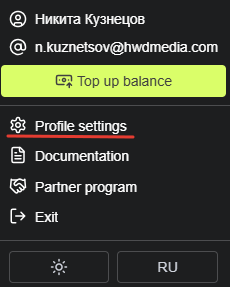
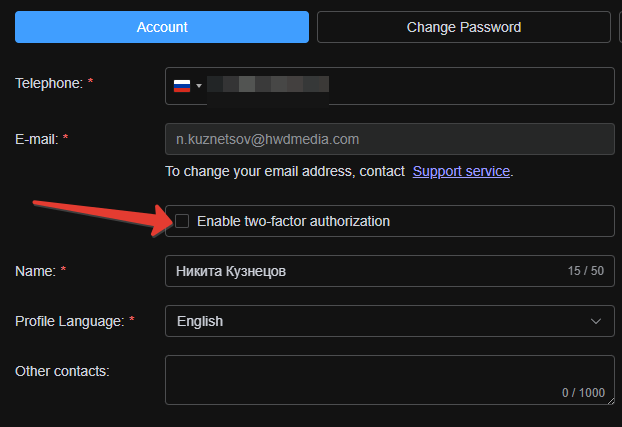
- Locate and enable the "Two-Factor Authentication" option.
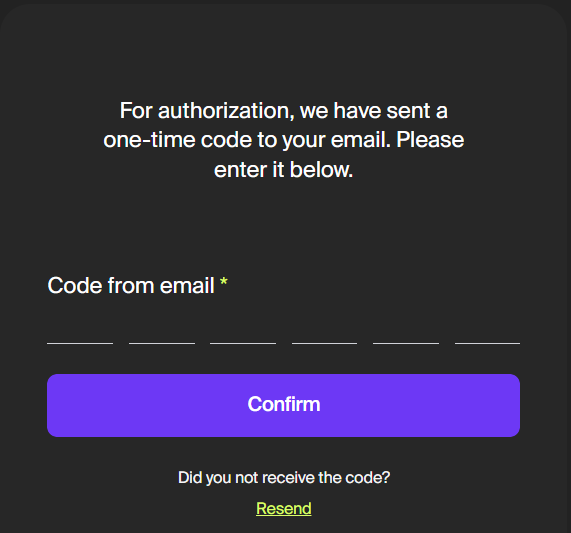
How Email 2FA Works
After activation, every subsequent login will require a unique one-time code in addition to your standard password. This code is automatically sent to the email address specified in your profile.
Enabling 2FA for Sub-Users
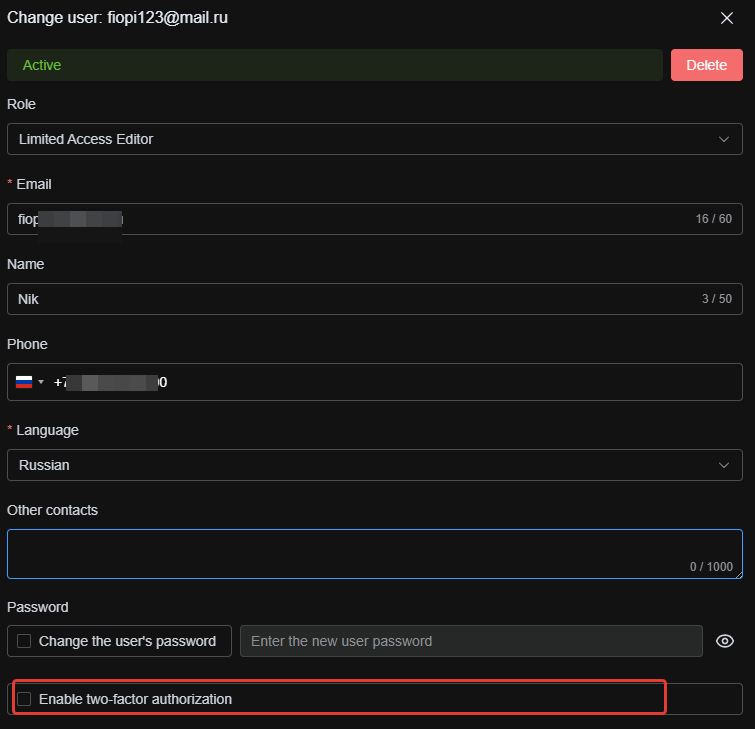
Account administrators can also enable two-factor authentication for sub-users to enforce stricter security policies.
- Go to Account Management → Users.
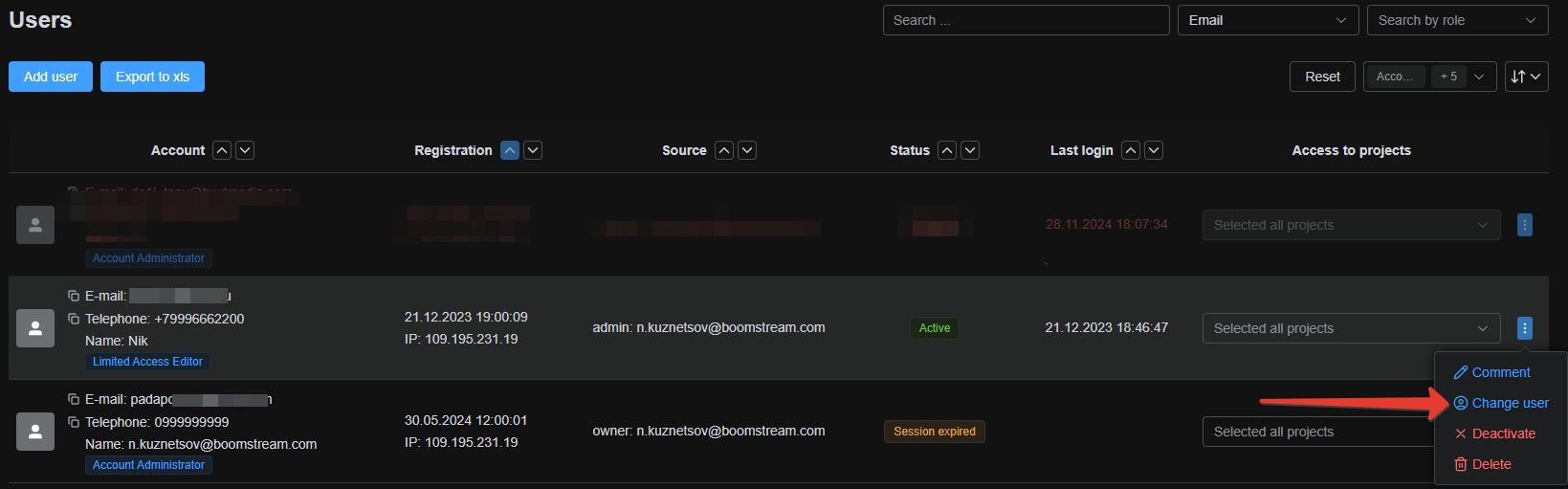
- Click to edit the desired user's settings and enable the 2FA option for their profile.
Frequently Asked Questions (FAQ)
What should I do if the 2FA email code doesn't arrive?
Check your "Spam" or "Promotions" folder in your email client. Also, ensure that your Boomstream profile contains the correct and up-to-date email address.
Can I disable Two-Factor Authentication?
Yes, this feature can be disabled at any time in your profile settings.
Is 2FA required for my video viewers?
No. Two-factor authentication applies only to logging into the content owner's or administrator's personal account. Viewer access settings (individual or group passwords) remain unchanged and operate independently.