
How to Upload Videos via TUS Client in Boomstream
The TUS protocol allows you to resume uploads in case of connection interruptions, making it the ideal solution for uploading large video files. Boomstream provides a built-in TUS client to simplify this process.
1. Uploading to the Project Root
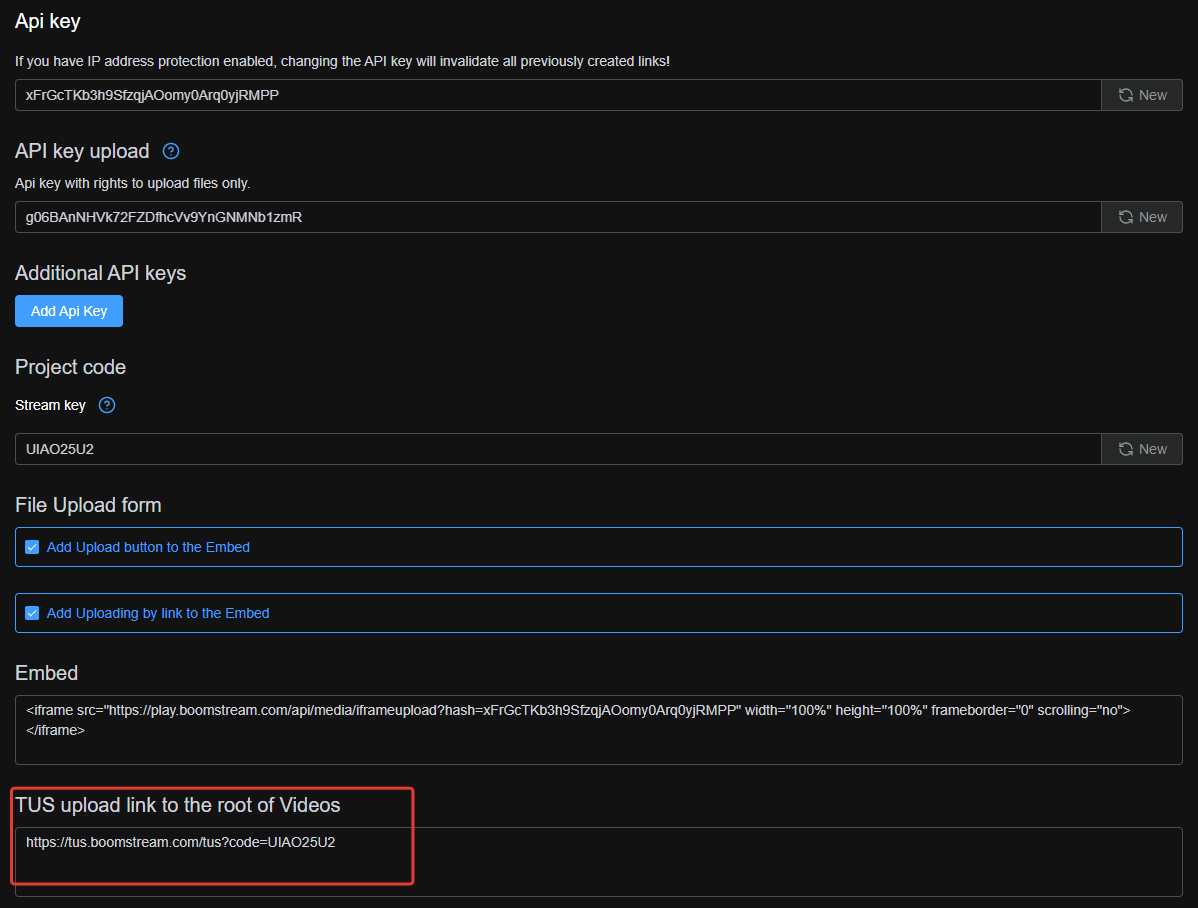
To upload files directly to the root of your project, use the dedicated TUS link found in your project settings.
- Navigation Path: Project settings → Integration tab → File upload form section.
2. Uploading to a Specific Folder
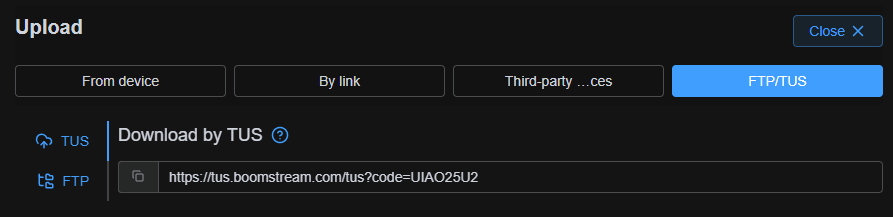
If you need to upload videos directly into a specific folder, the TUS link is displayed in your dashboard on the content uploading page.
- Navigation Path: Video files → Upload video → (link located on the right side of the page).
3. Preparing the TUS Upload Link
The standard TUS link format requires your unique project code:
https://tus.boomstream.com/tus?code=PROJECT_CODE
Where to Find the Project Code
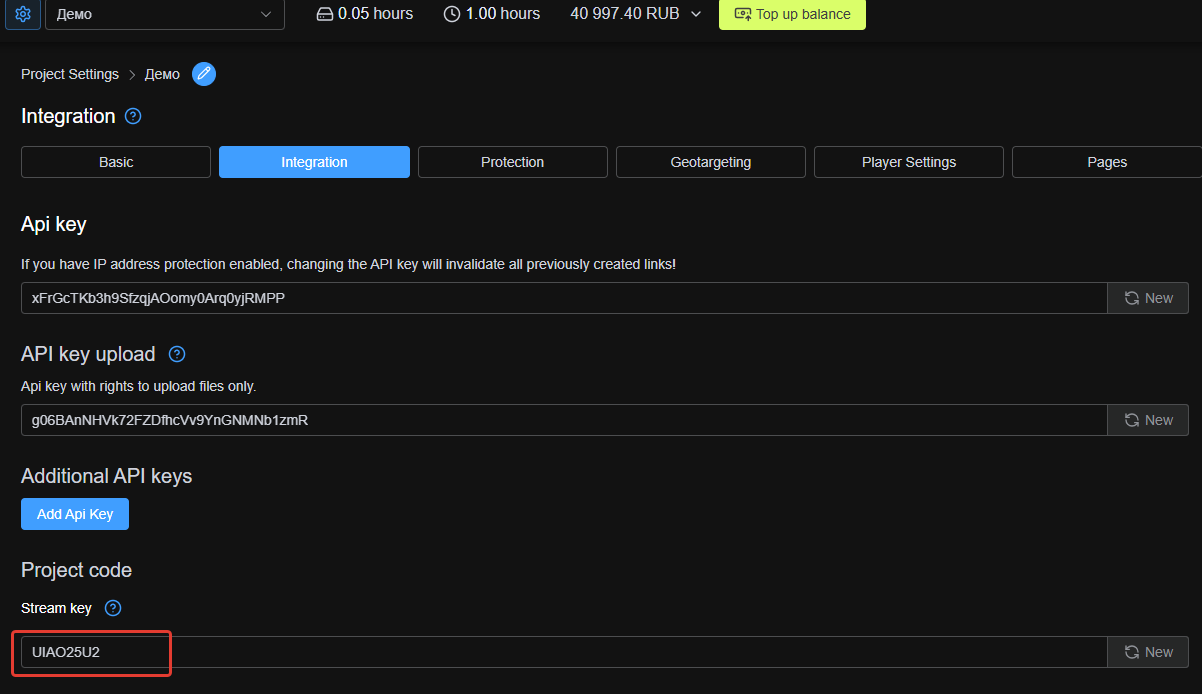
You can find your PROJECT_CODE in the integration settings:
- Navigation Path: Project settings → Integration tab → Project code section.
4. Source Code Example
Below is an interactive CodePen example demonstrating how to implement video upload via the TUS client:
Quick Reference Guide
| Upload Destination | Where to Find the TUS Link |
|---|---|
| Root of the project | Project settings → Integration → File upload form |
| Specific Folder | Video files → Upload video → right side of the page |
| Project Code | Project settings → Integration → Project code |
✅ Done!
You can now use the TUS client to reliably upload and resume large video files in your Boomstream account.